> ## Documentation Index
> Fetch the complete documentation index at: https://mooncamp.com/docs/llms.txt
> Use this file to discover all available pages before exploring further.
# Access Rights Overview
> An overview of how access rights and permissions work in Mooncamp
Mooncamp was designed to promote transparency and collaboration while maintaining control over access rights. Our comprehensive permission system allows precise control over how team members interact with goals, dashboards, and other resources. Whether sharing company-wide goals or working on private objectives, Mooncamp's access rights ensure everyone has the appropriate permissions to collaborate effectively.
## For which resources can access rights be set?
Currently, there are five different types of resources in Mooncamp that can be associated with access rights:
* All goal types (e.g., annual goals, OKRs, initiatives, etc.)
* Dashboards
* Plans
* Check-in templates
* Check-in schedules
The different levels of access rights for these resources all follow the same basic pattern, with some specific variations:
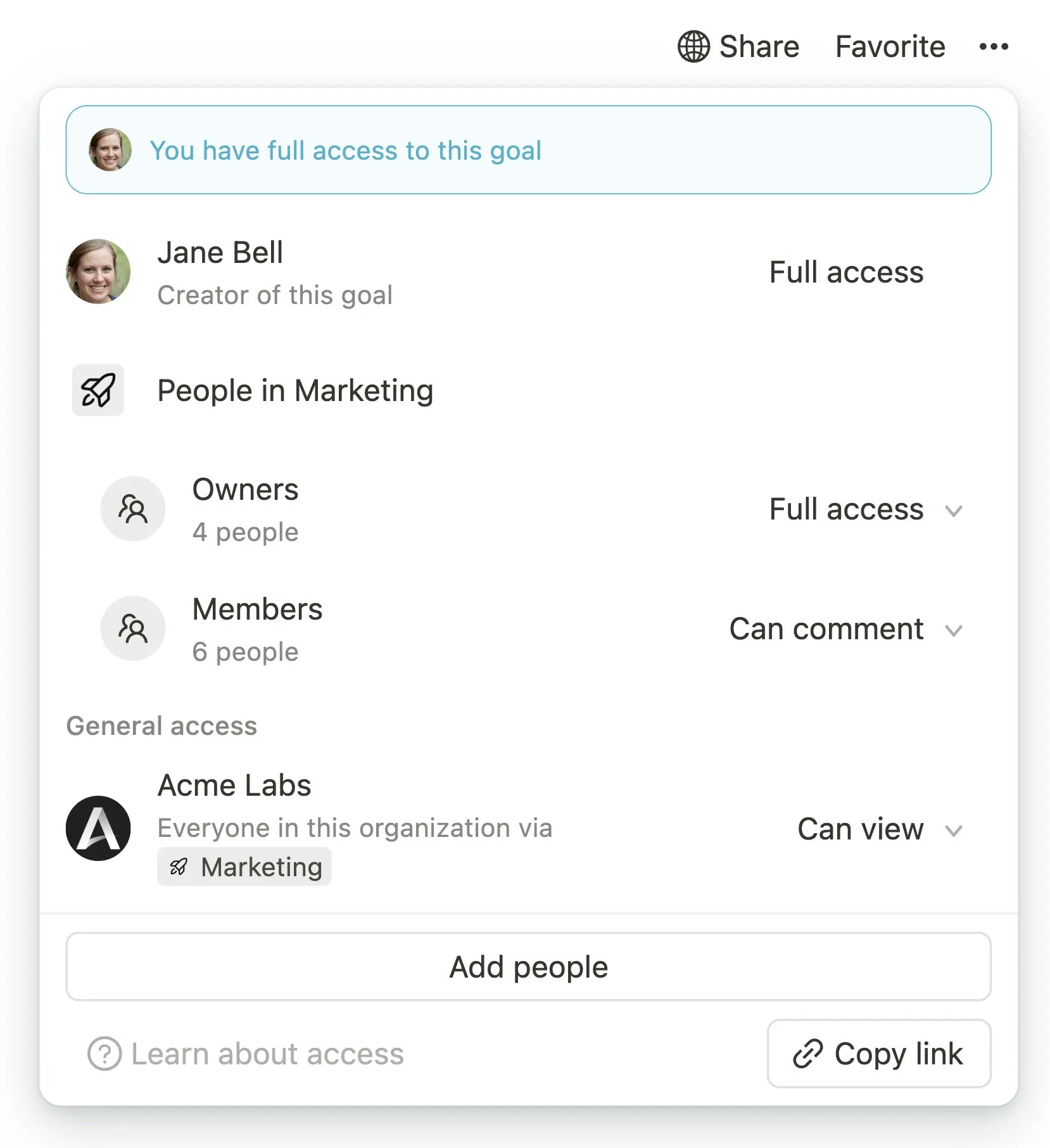 `Full Access`: Users with full access can edit the goal and change access rights for the goal.
`Edit`: Users with this permission can edit the goal but cannot change access rights for the goal.
`Comment`: Users with this permission can create comments on a goal **and also update the goal status**, but cannot edit it.
`View`: Users with this permission can view the goal but cannot comment or edit it.
`No access` (General access): This option can be used to disable access for all workspace members (who don't have any other access to the goal).
`Full Access`: Users with full access can edit the goal and change access rights for the goal.
`Edit`: Users with this permission can edit the goal but cannot change access rights for the goal.
`Comment`: Users with this permission can create comments on a goal **and also update the goal status**, but cannot edit it.
`View`: Users with this permission can view the goal but cannot comment or edit it.
`No access` (General access): This option can be used to disable access for all workspace members (who don't have any other access to the goal).
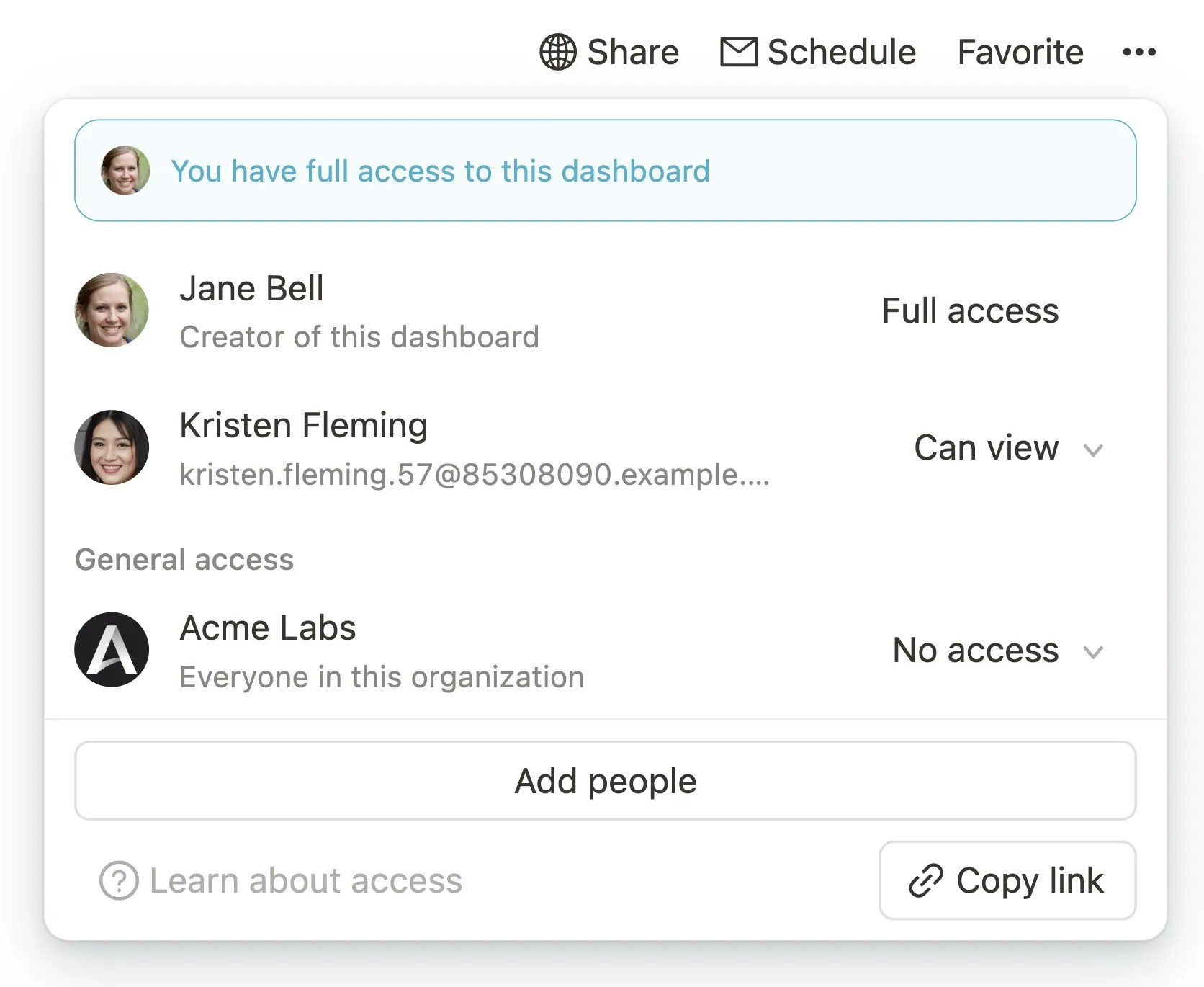 `Full Access`: Users with full access can edit the dashboard and change access rights for the dashboard.
`Edit`: Users with this permission can edit the dashboard but cannot change access rights for the dashboard.
`View`: Users with this permission can view the dashboard but cannot comment or edit it.
`No access` (General access): This option can be used to disable access for all workspace members (who don't have any other access to the dashboard).
`Full Access`: Users with full access can edit the dashboard and change access rights for the dashboard.
`Edit`: Users with this permission can edit the dashboard but cannot change access rights for the dashboard.
`View`: Users with this permission can view the dashboard but cannot comment or edit it.
`No access` (General access): This option can be used to disable access for all workspace members (who don't have any other access to the dashboard).
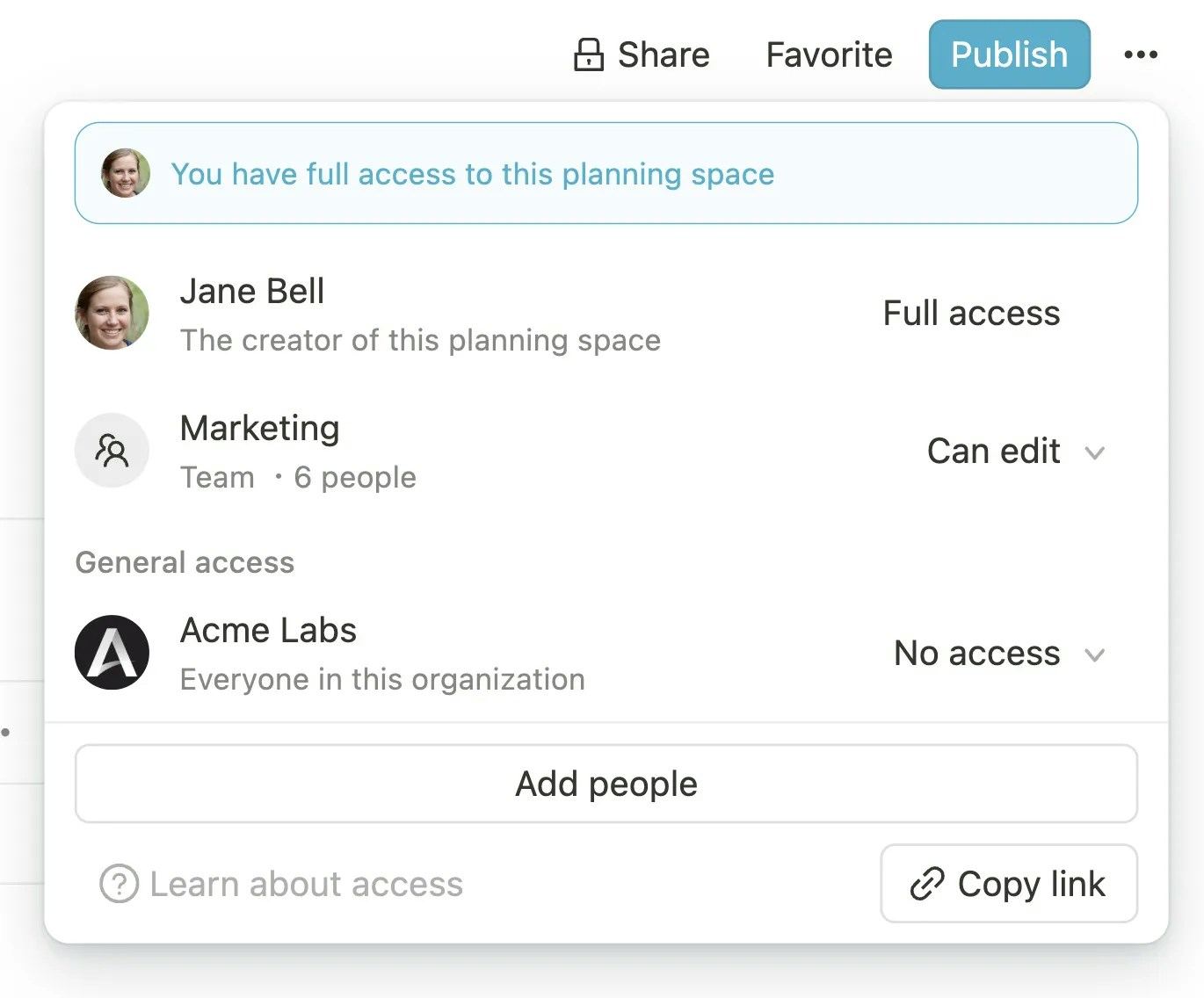 `Full Access`: Users with full access can edit the plan and change access rights for the plan.
`Edit`: Users with this permission can edit the plan but cannot change access rights for the plan.
`View`: Users with this permission can view the plan but cannot comment or edit it.
`No access` (General access): This option can be used to disable access for all workspace members (who don't have any other access to the plan).
`Full Access`: Users with full access can edit the plan and change access rights for the plan.
`Edit`: Users with this permission can edit the plan but cannot change access rights for the plan.
`View`: Users with this permission can view the plan but cannot comment or edit it.
`No access` (General access): This option can be used to disable access for all workspace members (who don't have any other access to the plan).
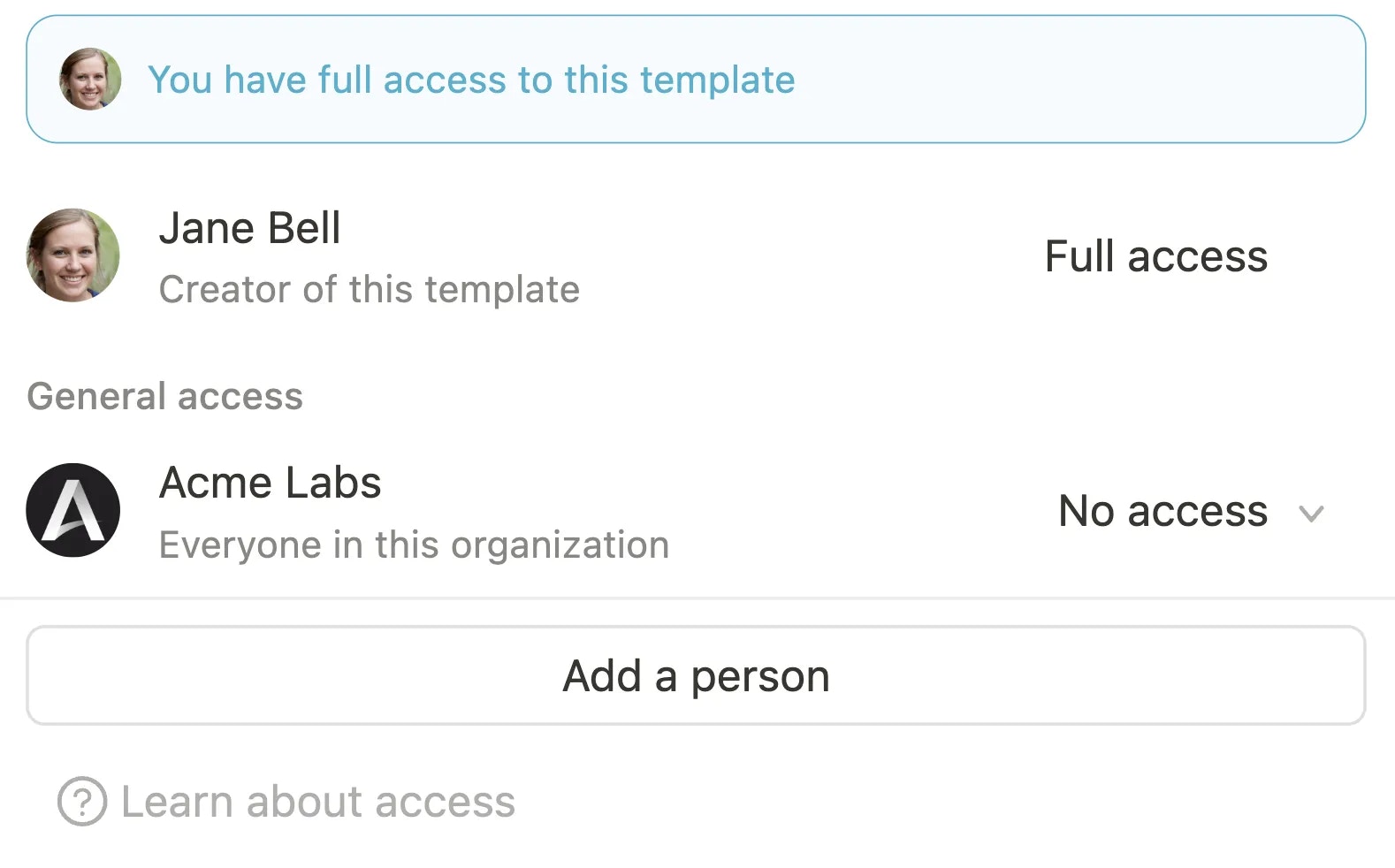 `Full Access`: Users with full access can edit the check-in template and change access rights for the check-in template.
`Edit`: Users with this permission can edit the check-in template but cannot change access rights for the check-in template.
`View`: Users with this permission can view the check-in template but cannot edit it.
`No access` (General access): This option can be used to disable access for all workspace members (who don't have any other access to the check-in template).
`Full Access`: Users with full access can edit the check-in template and change access rights for the check-in template.
`Edit`: Users with this permission can edit the check-in template but cannot change access rights for the check-in template.
`View`: Users with this permission can view the check-in template but cannot edit it.
`No access` (General access): This option can be used to disable access for all workspace members (who don't have any other access to the check-in template).
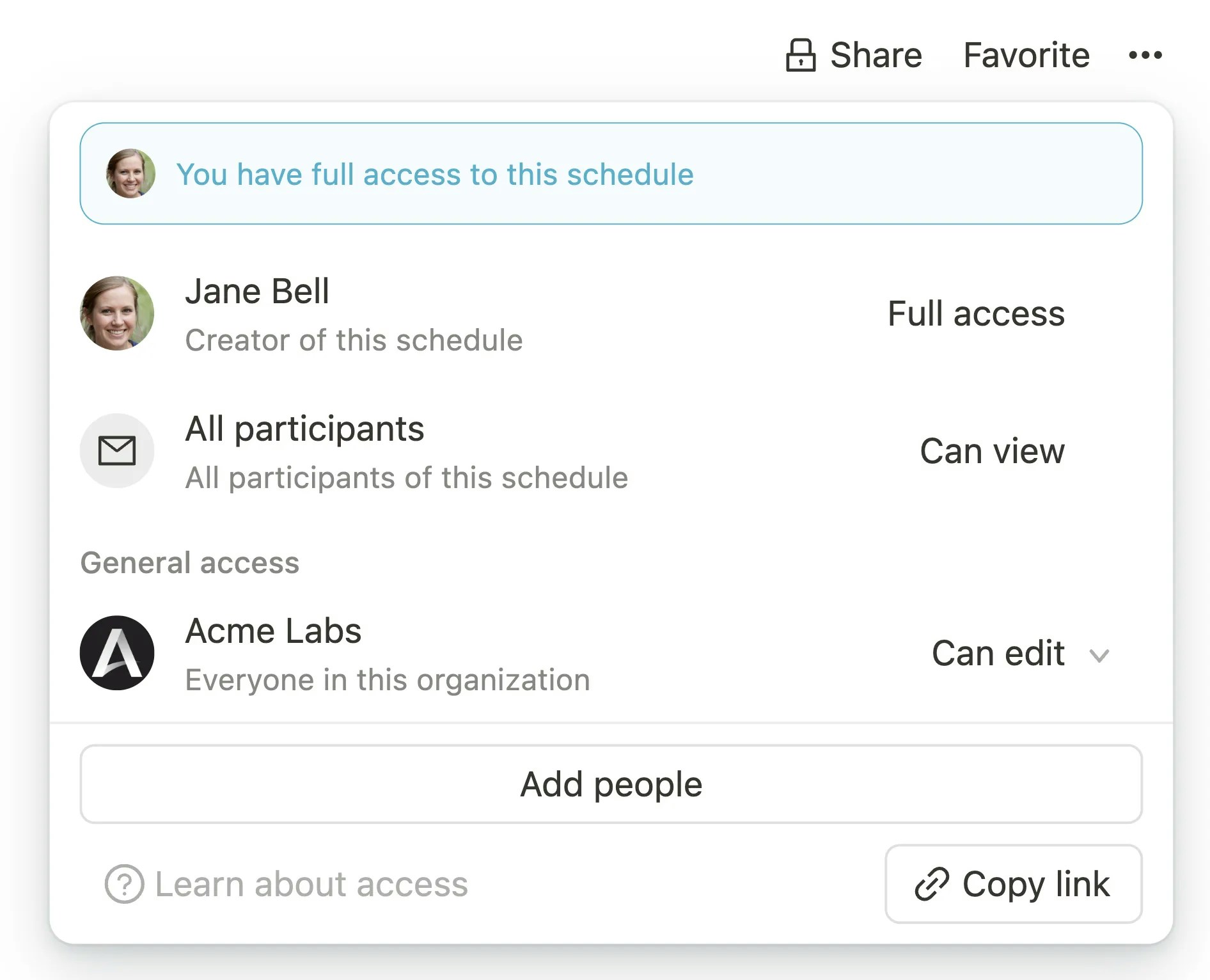 `Full Access`: Users with full access can edit the check-in schedule and change access rights for the check-in schedule.
`Edit`: Users with this permission can edit the check-in schedule but cannot change access rights for the check-in schedule.
`View`: Users with this permission can view the check-in schedule but cannot edit it.
`No access` (General access): This option can be used to disable access for all workspace members (who don't have any other access to the check-in schedule).
All participants of a check-in schedule automatically have read access to the schedule information, including participation rate data.
## Adding, editing, and removing access rights for resources
To change access rights for a goal, for example, simply click on `Share` in the top right. A popup will open:
### Adding and editing access rights for resources
1. Click on an existing access option for a group to change or remove the permission for that group.
2. Click on `Add people` to add permissions for new groups of people. You can choose from the following options:
* **Users**: Select specific persons to grant them access rights.
* **Team**: Select a team to grant access rights to all team members.
* **Properties of type `Select` or `Multi-Select`**: Any `User` property of type `Select` or `Multi-Select` (such as "Location") is available as an option.
### Removing access rights for resources
`Full Access`: Users with full access can edit the check-in schedule and change access rights for the check-in schedule.
`Edit`: Users with this permission can edit the check-in schedule but cannot change access rights for the check-in schedule.
`View`: Users with this permission can view the check-in schedule but cannot edit it.
`No access` (General access): This option can be used to disable access for all workspace members (who don't have any other access to the check-in schedule).
All participants of a check-in schedule automatically have read access to the schedule information, including participation rate data.
## Adding, editing, and removing access rights for resources
To change access rights for a goal, for example, simply click on `Share` in the top right. A popup will open:
### Adding and editing access rights for resources
1. Click on an existing access option for a group to change or remove the permission for that group.
2. Click on `Add people` to add permissions for new groups of people. You can choose from the following options:
* **Users**: Select specific persons to grant them access rights.
* **Team**: Select a team to grant access rights to all team members.
* **Properties of type `Select` or `Multi-Select`**: Any `User` property of type `Select` or `Multi-Select` (such as "Location") is available as an option.
### Removing access rights for resources
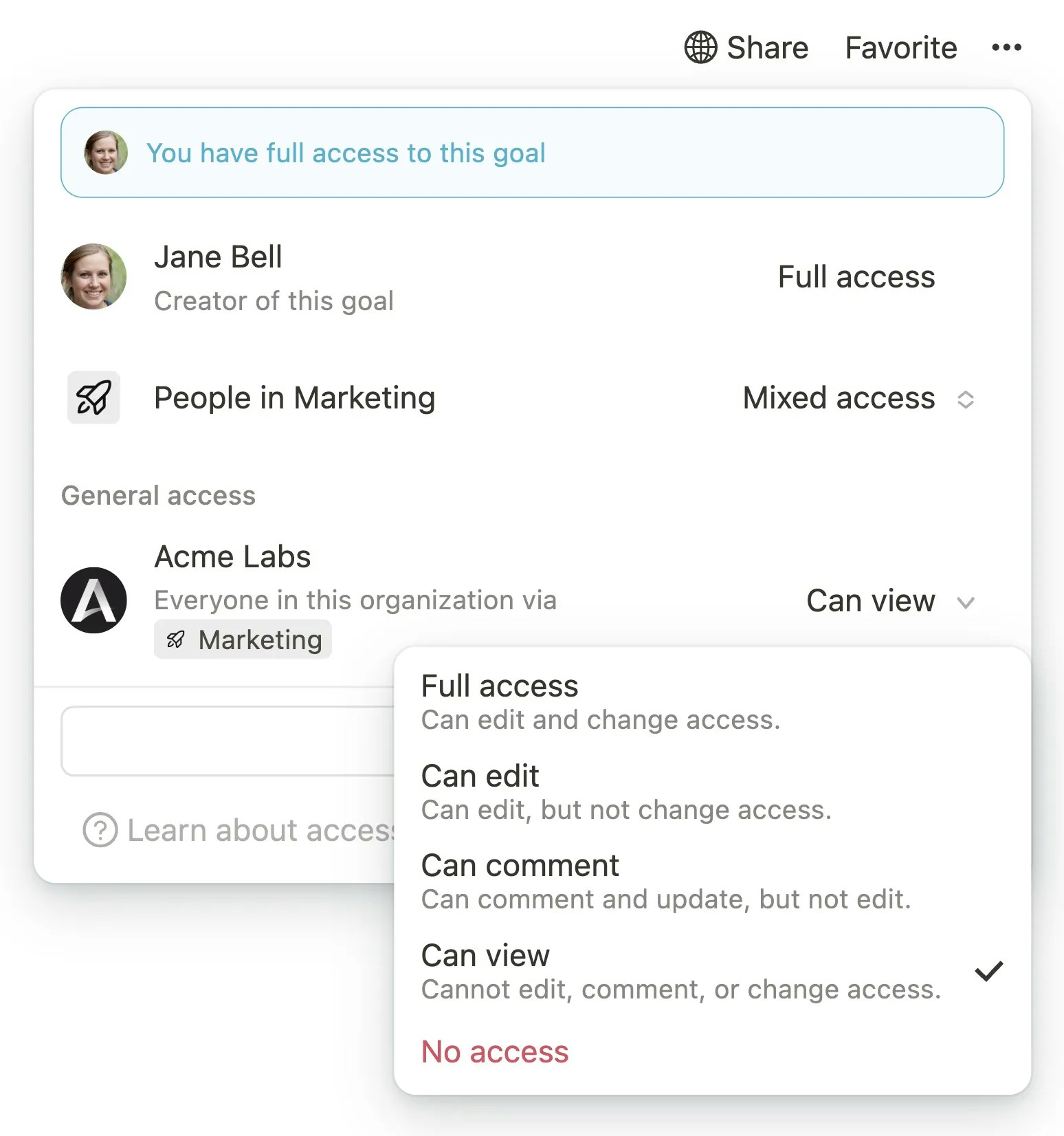 Click on an existing access option for a person or group of people and select `Remove` or `No access` for teamspace permissions or for other workspace members under the `General access` section.
## Highest permission wins principle
Mooncamp always considers the most comprehensive access level granted to a user. This is evaluated across all permission levels:
* Creator permissions (creators of a resource always have `Full Access`)
* Local permissions on the resource (e.g., "All users with property `Location` = `Berlin`")
* Teamspace permissions (on goals)
* Permissions from [access groups](/en/roles)
If a team member only has "View" rights for a goal through their team but receives "Edit" rights directly on the goal, the "Edit" rights are granted as the higher-level permission.
If a team member has read access to a goal through their team but belongs to an [access group](/en/roles) where the right `Unrestricted access to all goals` is granted, the team member will still have full access to the goal.
## Access control of goals: Teamspace permissions
Click on an existing access option for a person or group of people and select `Remove` or `No access` for teamspace permissions or for other workspace members under the `General access` section.
## Highest permission wins principle
Mooncamp always considers the most comprehensive access level granted to a user. This is evaluated across all permission levels:
* Creator permissions (creators of a resource always have `Full Access`)
* Local permissions on the resource (e.g., "All users with property `Location` = `Berlin`")
* Teamspace permissions (on goals)
* Permissions from [access groups](/en/roles)
If a team member only has "View" rights for a goal through their team but receives "Edit" rights directly on the goal, the "Edit" rights are granted as the higher-level permission.
If a team member has read access to a goal through their team but belongs to an [access group](/en/roles) where the right `Unrestricted access to all goals` is granted, the team member will still have full access to the goal.
## Access control of goals: Teamspace permissions
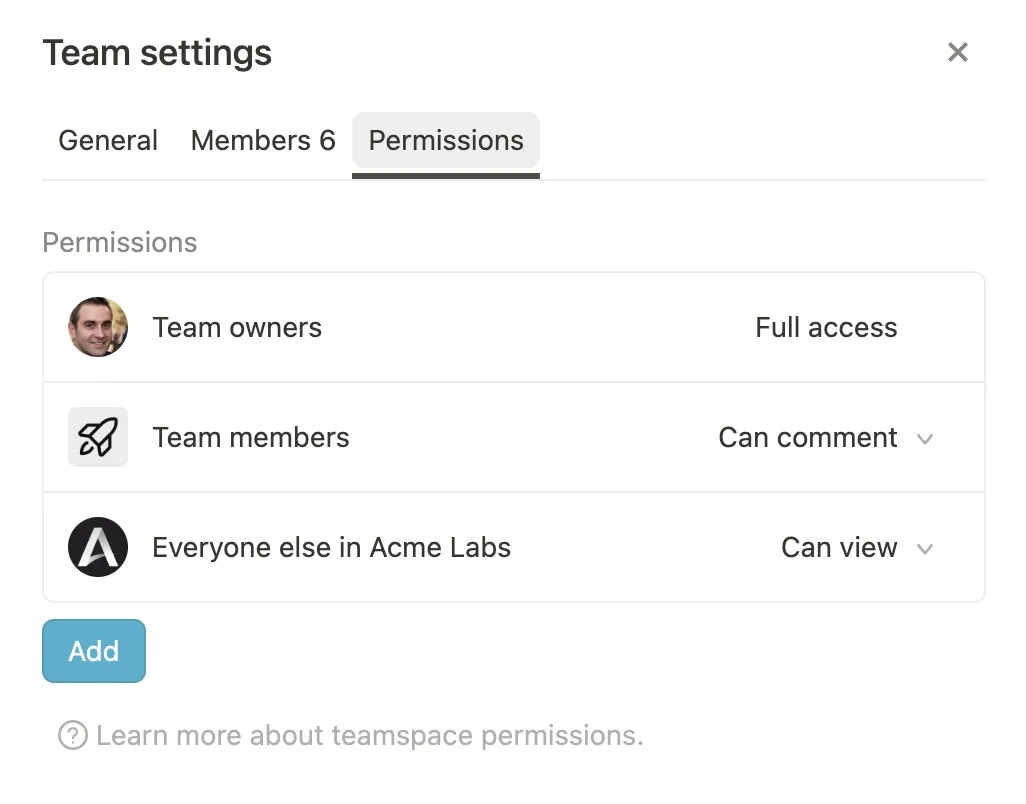 **Permissions at the teamspace level** allow goals created within a teamspace or assigned to a team to **inherit their access rights** from these **teamspace permission settings**.
### Settings for teamspace permissions
#### Where can I find the settings for team permissions?
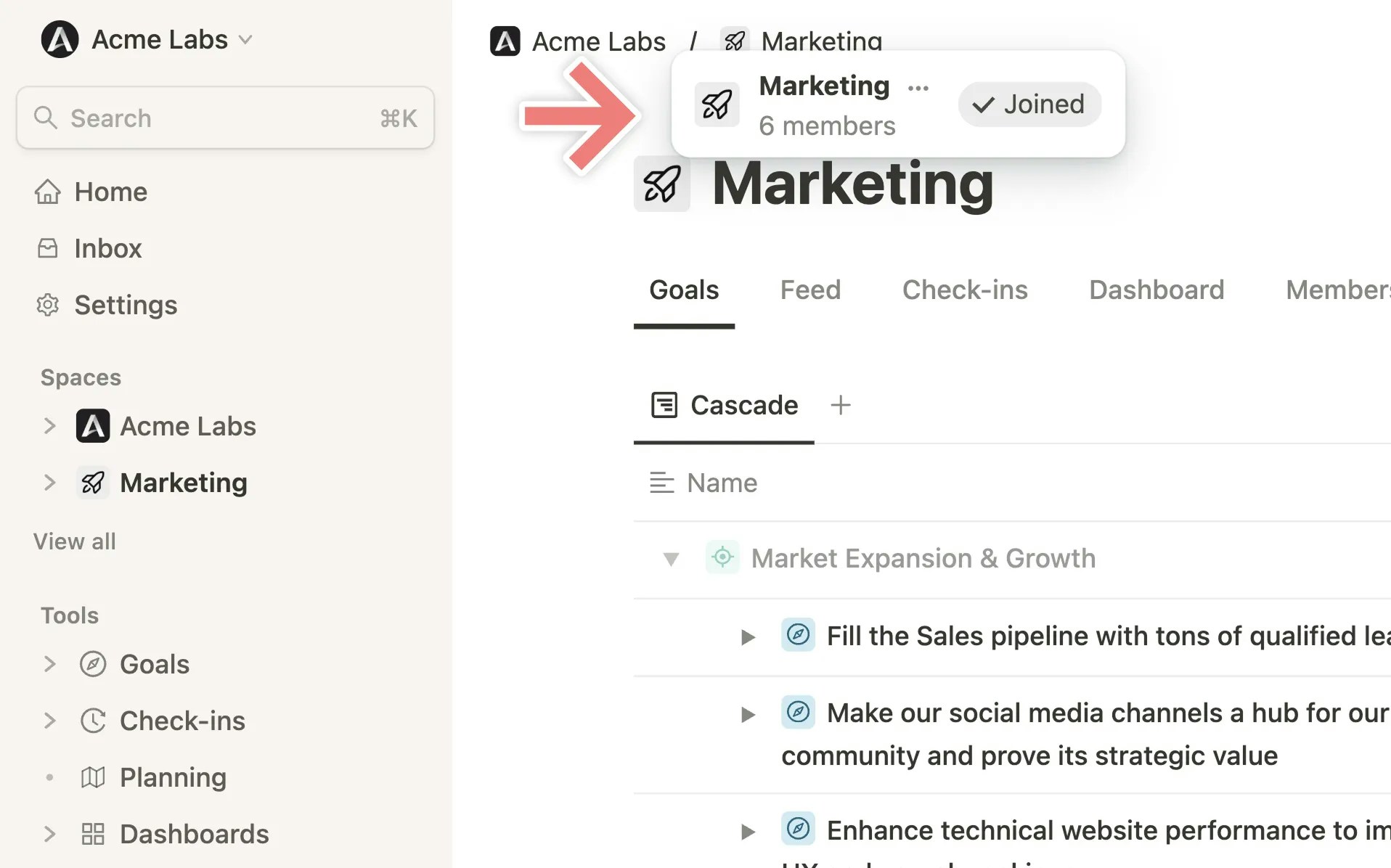
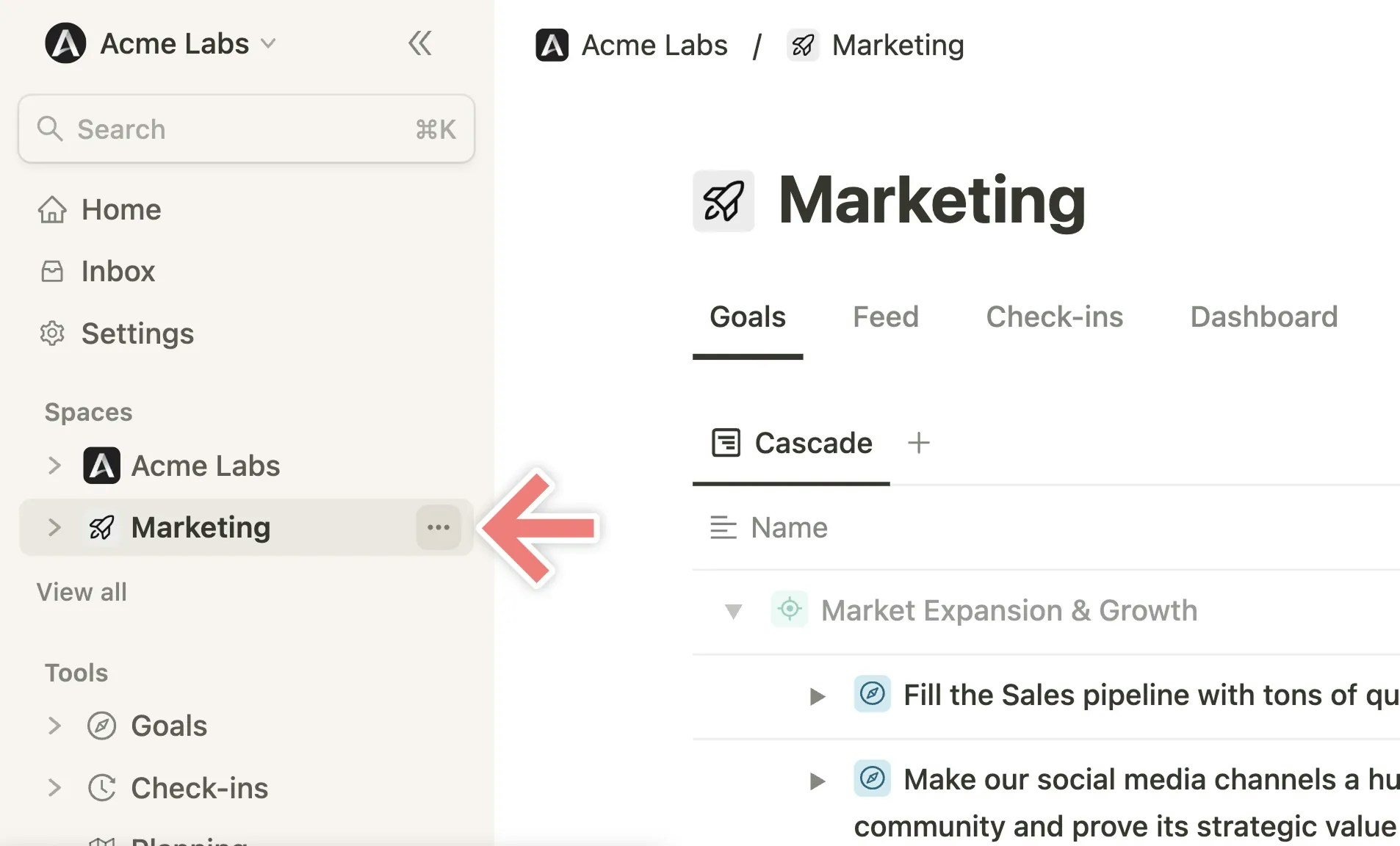
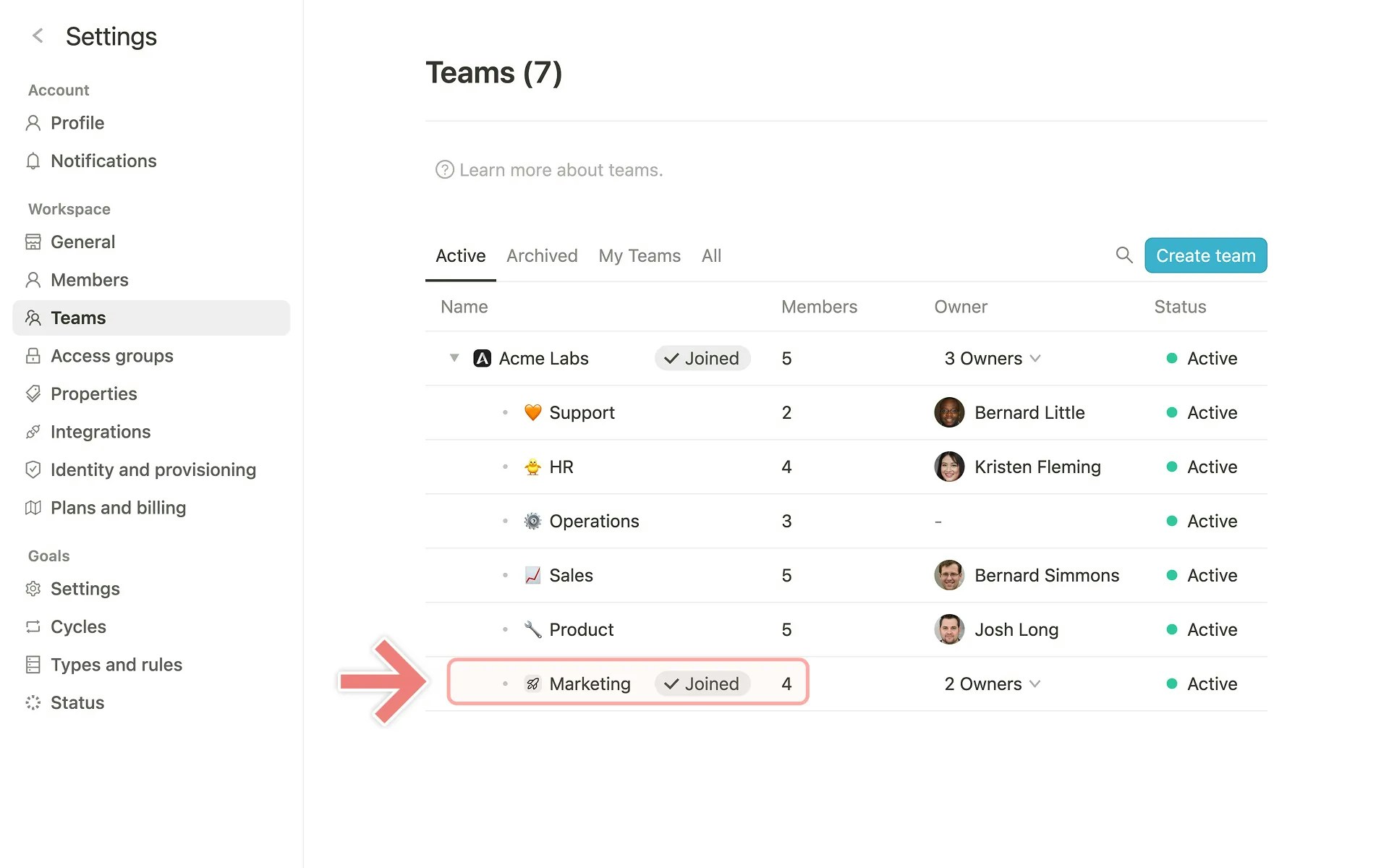
The team permissions are located in the `Team settings` of the respective teamspace. There are three ways to access them:
1. Through the `Team settings` of the teamspace
**Permissions at the teamspace level** allow goals created within a teamspace or assigned to a team to **inherit their access rights** from these **teamspace permission settings**.
### Settings for teamspace permissions
#### Where can I find the settings for team permissions?
The team permissions are located in the `Team settings` of the respective teamspace. There are three ways to access them:
1. Through the `Team settings` of the teamspace
 2. Through the sidebar by clicking on `...` next to the team name.
 3. Through the [Teams page](/en/teams) within the workspace settings
 #### Access groups in teamspaces
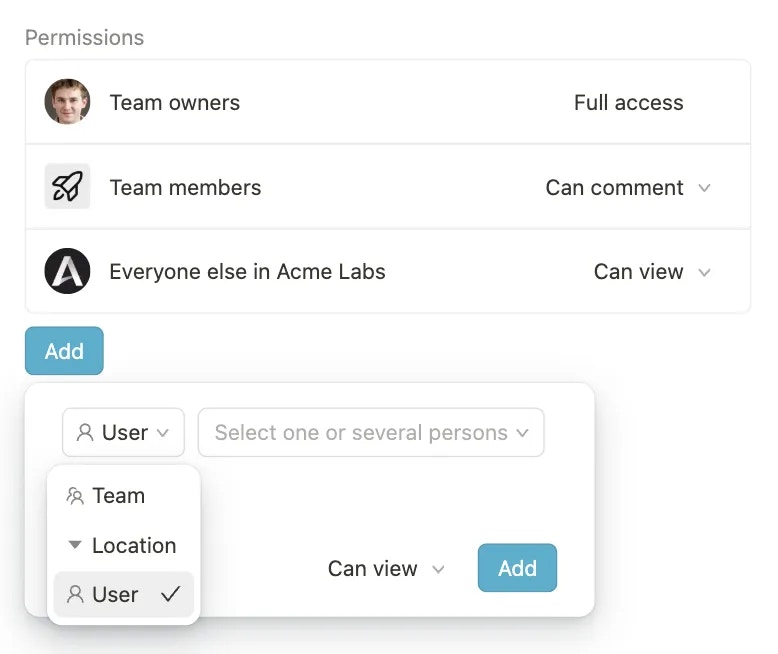
There are three default groups at the teamspace level:
* `Team owners` (have full access to goals within the teamspace)
* `Team members`
* `Everyone else in the workspace` (all workspace members who are not part of the team)
Additionally, further groups or individual users can be added.
#### Access groups in teamspaces
There are three default groups at the teamspace level:
* `Team owners` (have full access to goals within the teamspace)
* `Team members`
* `Everyone else in the workspace` (all workspace members who are not part of the team)
Additionally, further groups or individual users can be added.
 ### When are goals linked with teamspace permissions?
* Goals created within a teamspace are automatically linked to the teamspace permissions
* Goals assigned to a team via the `Team` property (e.g., in the goal detail view or in a table view of goals) are linked to the teamspace permissions
* A goal can be assigned to multiple teams, which results in it being linked to the permission settings of the respective teamspaces
* When a goal is removed from a team, the link to the teamspace permissions is removed
### When are goals linked with teamspace permissions?
* Goals created within a teamspace are automatically linked to the teamspace permissions
* Goals assigned to a team via the `Team` property (e.g., in the goal detail view or in a table view of goals) are linked to the teamspace permissions
* A goal can be assigned to multiple teams, which results in it being linked to the permission settings of the respective teamspaces
* When a goal is removed from a team, the link to the teamspace permissions is removed
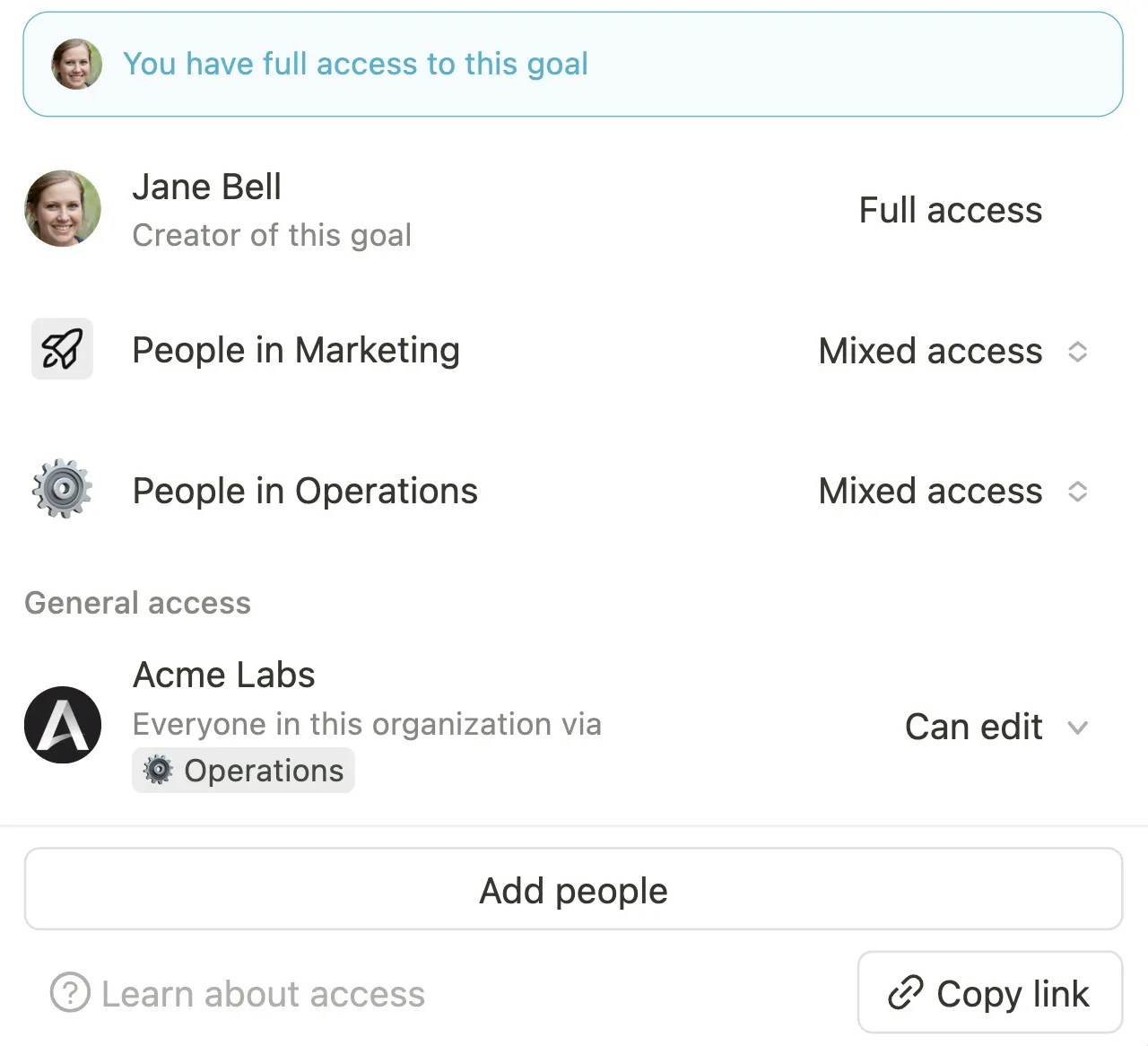 ### Adjusting linked access rights
Users can adjust the access rights acquired through a link:
#### Extending access rights
When access rights are extended on a goal, the link to the teamspace permissions remains. This means that changes to the teamspace permissions will still be transferred to the goal.
Adding a new user with `View` rights to one or more goals.
Changing the permissions for the access group `Team members` from `View` to `Edit` on one or more goals.
#### Restricting access rights
When access rights are restricted on a goal, the link to the teamspace permissions is removed. This means that changes to the teamspace permissions are no longer automatically transferred to the goal.
Changing the permissions for the access group `Team members` from `Edit` to `View` on one or more goals.
Changing the `General access` from `View` to `No access` on one or more goals.
#### Restoring the link
### Adjusting linked access rights
Users can adjust the access rights acquired through a link:
#### Extending access rights
When access rights are extended on a goal, the link to the teamspace permissions remains. This means that changes to the teamspace permissions will still be transferred to the goal.
Adding a new user with `View` rights to one or more goals.
Changing the permissions for the access group `Team members` from `View` to `Edit` on one or more goals.
#### Restricting access rights
When access rights are restricted on a goal, the link to the teamspace permissions is removed. This means that changes to the teamspace permissions are no longer automatically transferred to the goal.
Changing the permissions for the access group `Team members` from `Edit` to `View` on one or more goals.
Changing the `General access` from `View` to `No access` on one or more goals.
#### Restoring the link
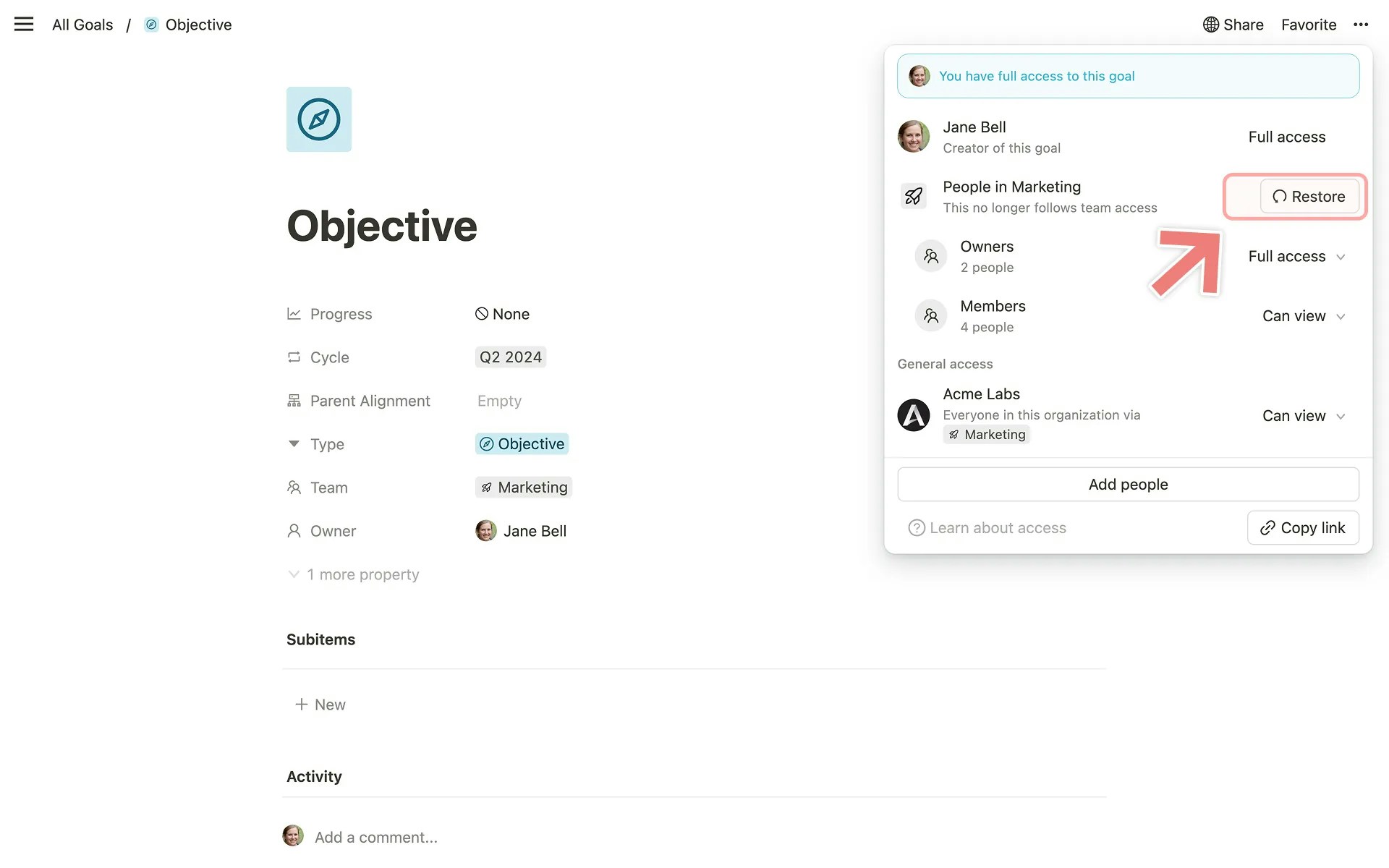 Separated links can be restored by clicking on `Restore`. This resets the access rights on the goal to the current state of the teamspace permissions that were originally linked.
## Subgoal permissions and copying goals
### Subgoal permissions
When a sub-goal is created within a goal, it receives a copy of the parent goal's permissions. The permissions of the sub-goal can be adjusted manually if needed.
### Copying goals
When copying a goal, all access rights of the original goal are transferred (including linked access rights and manually added permissions)
## Access control of goals: Default access rights for the workspace
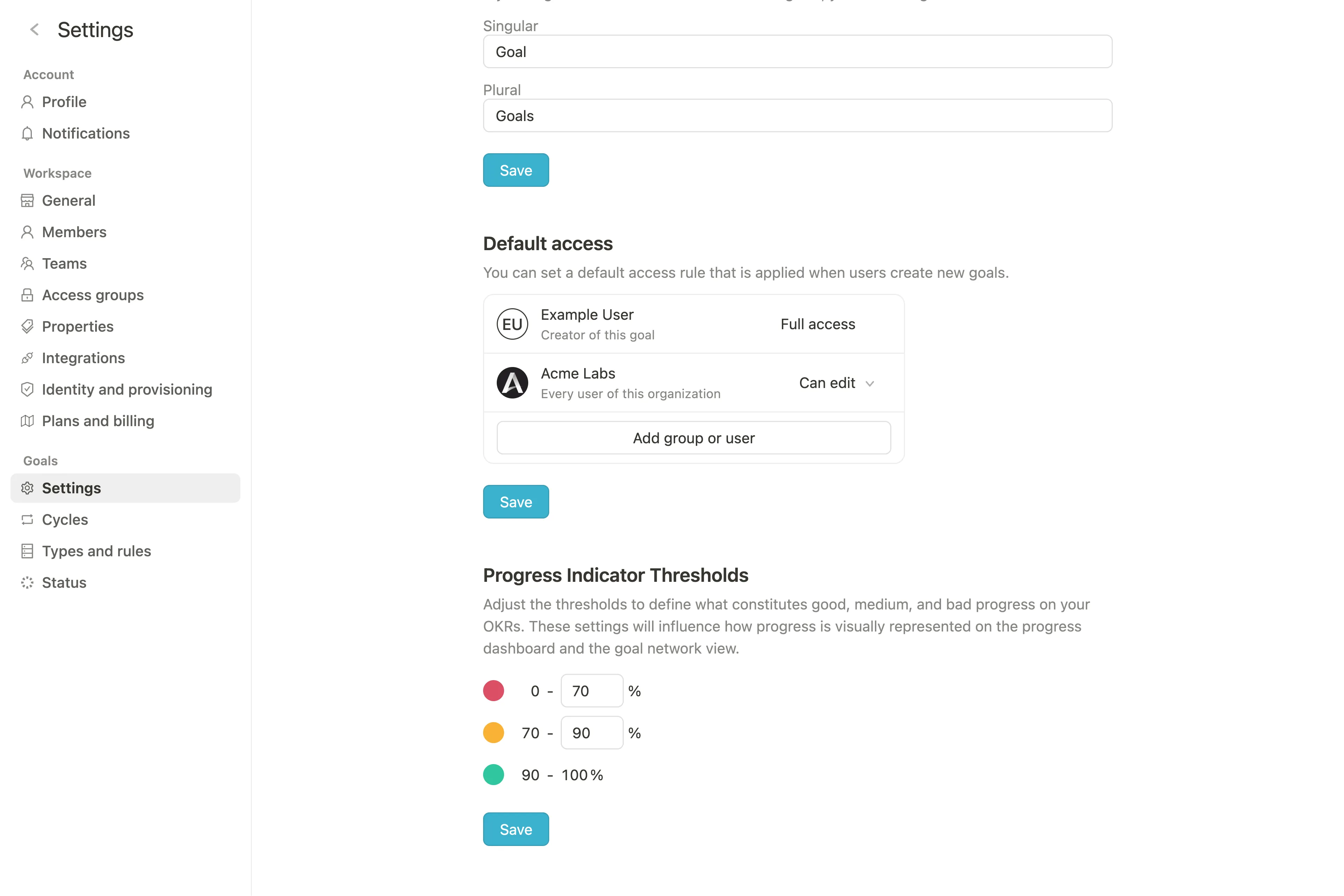
In addition to access control at the teamspace level, admins also have the option to set default access rights for the entire workspace. This default access right serves as a "catch-all rule" for all goals that are not assigned to any team (and therefore not linked with teamspace permissions). All goals that are created outside of teamspaces will be initialized with these default permissions.
If these goals are subsequently assigned to one or more teams and the teamspace permission levels of these teams are higher than the workspace default permissions, the default permissions are overwritten.
Furthermore, all teamspaces that are created *after* the default access rights have been set will also be initialized with these default permissions.
**Note for admins:** We recommend setting these default settings before goals are created in the workspace (by you or by other users), as the settings are only applied to subsequently created goals, not to already created goals.
You can configure the default access settings in the workspace settings under `Goals > Settings`.
Separated links can be restored by clicking on `Restore`. This resets the access rights on the goal to the current state of the teamspace permissions that were originally linked.
## Subgoal permissions and copying goals
### Subgoal permissions
When a sub-goal is created within a goal, it receives a copy of the parent goal's permissions. The permissions of the sub-goal can be adjusted manually if needed.
### Copying goals
When copying a goal, all access rights of the original goal are transferred (including linked access rights and manually added permissions)
## Access control of goals: Default access rights for the workspace
In addition to access control at the teamspace level, admins also have the option to set default access rights for the entire workspace. This default access right serves as a "catch-all rule" for all goals that are not assigned to any team (and therefore not linked with teamspace permissions). All goals that are created outside of teamspaces will be initialized with these default permissions.
If these goals are subsequently assigned to one or more teams and the teamspace permission levels of these teams are higher than the workspace default permissions, the default permissions are overwritten.
Furthermore, all teamspaces that are created *after* the default access rights have been set will also be initialized with these default permissions.
**Note for admins:** We recommend setting these default settings before goals are created in the workspace (by you or by other users), as the settings are only applied to subsequently created goals, not to already created goals.
You can configure the default access settings in the workspace settings under `Goals > Settings`.