> ## Documentation Index
> Fetch the complete documentation index at: https://mooncamp.com/docs/llms.txt
> Use this file to discover all available pages before exploring further.
# Data Integrations 101
> Learn how to connect your data to goals in Mooncamp
## Integrations - General information
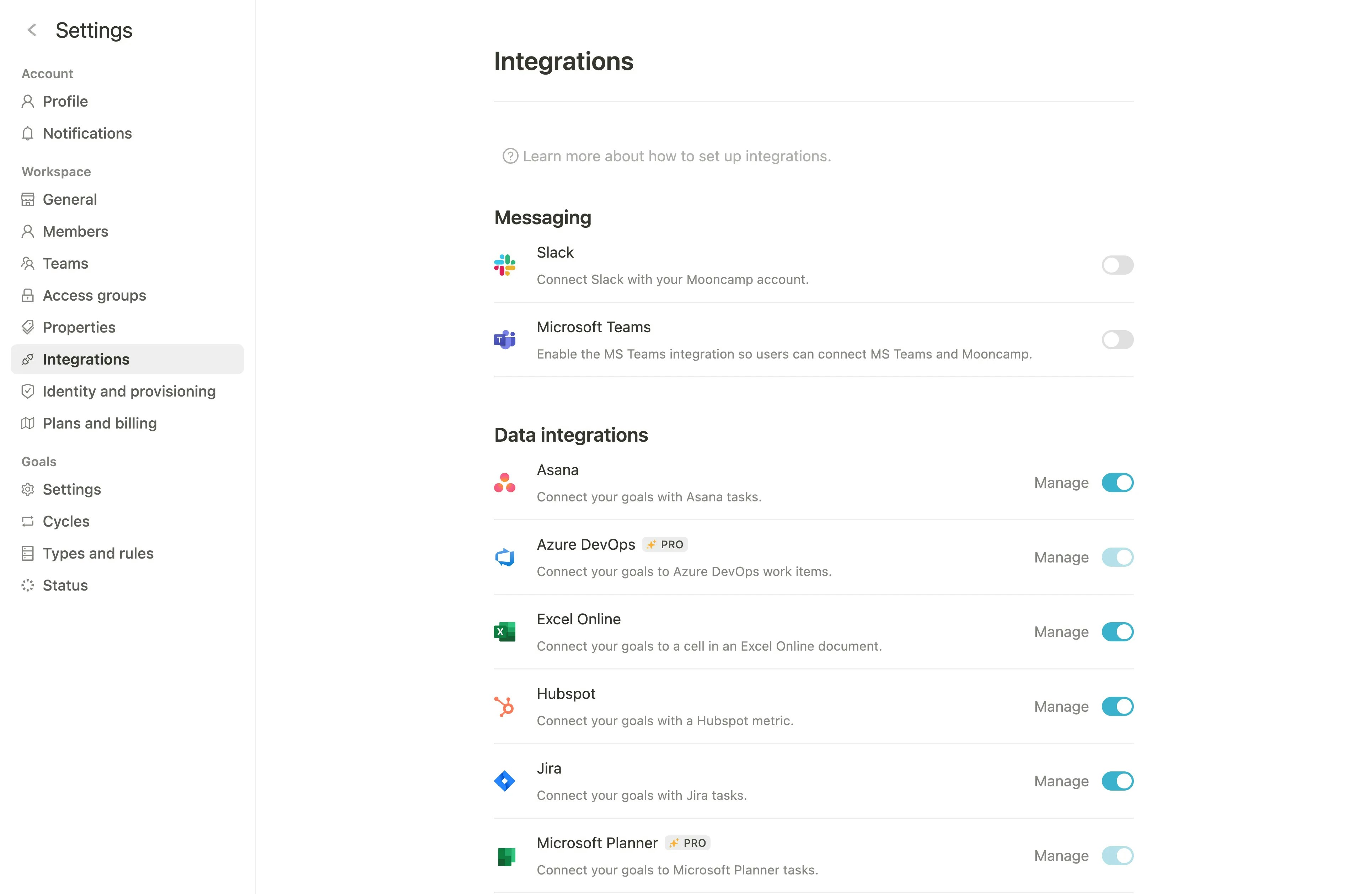
Before data sources can be connected by individual users, **admins in Mooncamp first define centrally** which integrations are generally permitted in the entire account:
 Each data integration is then connected to an individual account of the respective tool, which has its own login data.
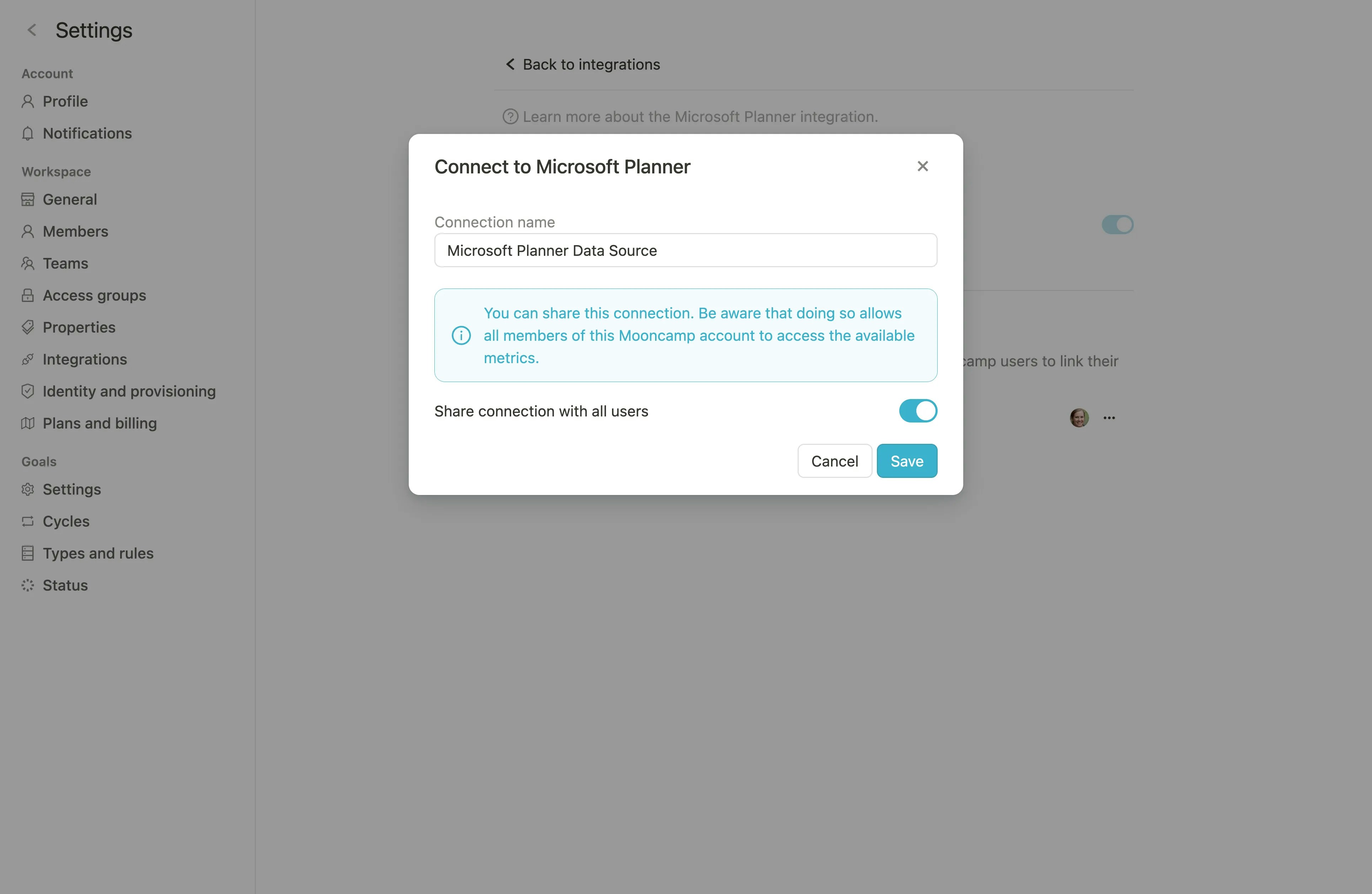
Both when linking the goal and data source for the first time and subsequently via **Settings > Integrations**, you can specify whether a data source should be shared with other users in the workspace or not:
Each data integration is then connected to an individual account of the respective tool, which has its own login data.
Both when linking the goal and data source for the first time and subsequently via **Settings > Integrations**, you can specify whether a data source should be shared with other users in the workspace or not:
 ### 1. Shared Data Sources
When a data source is shared, all users with editing rights for the corresponding goal can access this data source. This means that they can also connect the data of the stored account to the goal.
Important: Sharing a data source only grants access to the connection within Mooncamp - the actual data within the third-party tool (e.g. MS Planner) remains protected by its own authorizations and access controls.
However, anyone who has access to the shared data source within Mooncamp can view the connected data as the progress metric in the goal.
### 2. Private Data Sources
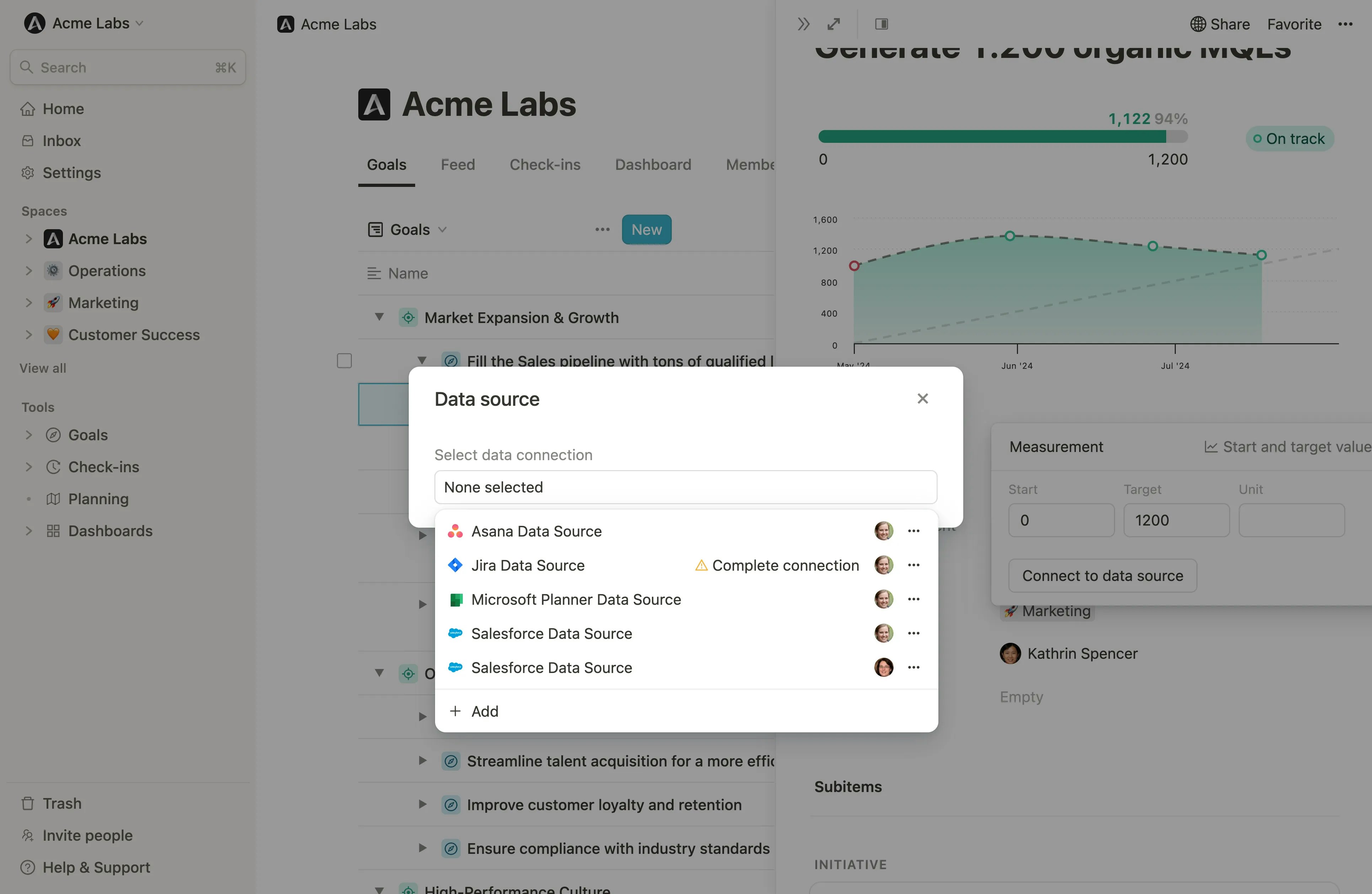
If a data source is not shared, it remains visible and usable exclusively for the original user. It also does not appear in the data source list of other people in the workspace:
### 1. Shared Data Sources
When a data source is shared, all users with editing rights for the corresponding goal can access this data source. This means that they can also connect the data of the stored account to the goal.
Important: Sharing a data source only grants access to the connection within Mooncamp - the actual data within the third-party tool (e.g. MS Planner) remains protected by its own authorizations and access controls.
However, anyone who has access to the shared data source within Mooncamp can view the connected data as the progress metric in the goal.
### 2. Private Data Sources
If a data source is not shared, it remains visible and usable exclusively for the original user. It also does not appear in the data source list of other people in the workspace:
 ## Connecting goals to data sources
To automatically track the progress of a goal with a data source, follow these steps:
1. Create or edit a goal, then go to the Progress property and choose a measurement type that allows connecting to a data source (`Start and Target`, `Threshold`).
2. Click *Connect to data source* and select the desired connection from the list of available connections. (You can also create a new connection here.)
3. Configure the connection according to the requirements of the respective integration.
4. **Save your connection:** After configuration, click `Save`. The corresponding icon will appear next to your goal, indicating it's synced with the data source.
## Automatic progress updates
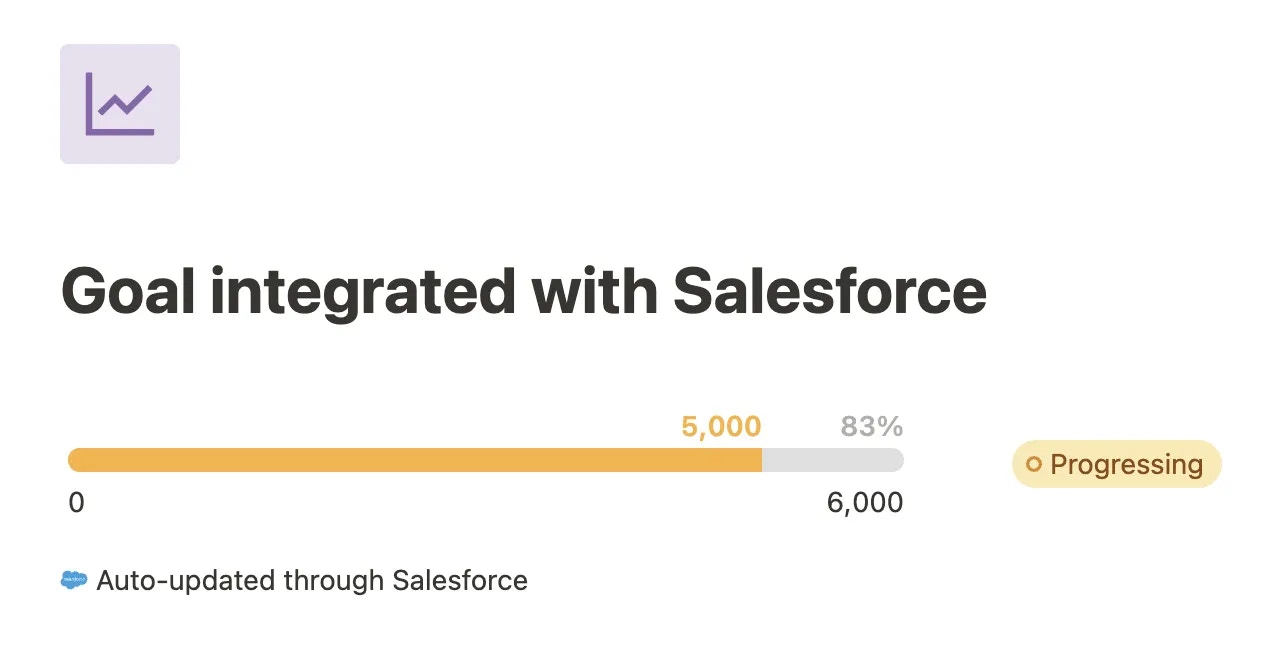
Once the integration is active, Mooncamp automatically updates your goals based on changes in the connected data source.
## Connecting goals to data sources
To automatically track the progress of a goal with a data source, follow these steps:
1. Create or edit a goal, then go to the Progress property and choose a measurement type that allows connecting to a data source (`Start and Target`, `Threshold`).
2. Click *Connect to data source* and select the desired connection from the list of available connections. (You can also create a new connection here.)
3. Configure the connection according to the requirements of the respective integration.
4. **Save your connection:** After configuration, click `Save`. The corresponding icon will appear next to your goal, indicating it's synced with the data source.
## Automatic progress updates
Once the integration is active, Mooncamp automatically updates your goals based on changes in the connected data source.
 💡 **Tip for admins:** It is recommended to set the synchronization schedule for your data integrations to sync once per day (the app then updates the progress daily at 5am CEST). The settings can be found in Settings > Integrations > Data Integrations.