> ## Documentation Index
> Fetch the complete documentation index at: https://mooncamp.com/docs/llms.txt
> Use this file to discover all available pages before exploring further.
# Exporting Content
> Learn how to export goals, dashboards, and reports as PDF, PNG, or CSV
Mooncamp allows you to export content from various pages as **PDF**, **PNG**, or **CSV** files. Whether you need to share progress updates, prepare meeting materials, or analyze goal data in a spreadsheet — exporting makes it easy.
## Export formats
Export a document-style file, ideal for sharing polished reports or printing.
Export an image file, perfect for embedding in presentations or messages.
Export a spreadsheet file with structured goal data for further analysis in tools like Excel or Google Sheets.
## Where you can export
Not every format is available on every page. The table below shows which export formats are supported in each area of Mooncamp.
| Page | PDF | PNG | CSV |
| ------------------------------------------ | --- | --- | --- |
| Home - Goals | Yes | Yes | Yes |
| Teamspaces - Goals | Yes | Yes | Yes |
| Goal Explorer | Yes | Yes | Yes |
| Planning | Yes | Yes | Yes |
| Bulk select (cascade or goal-list, max 10) | Yes | Yes | Yes |
| Teamspaces - Dashboard | Yes | Yes | No |
| Goal details | Yes | Yes | No |
| Dashboard goal-list card | No | No | Yes |
## How to export
### Exporting from the page menu
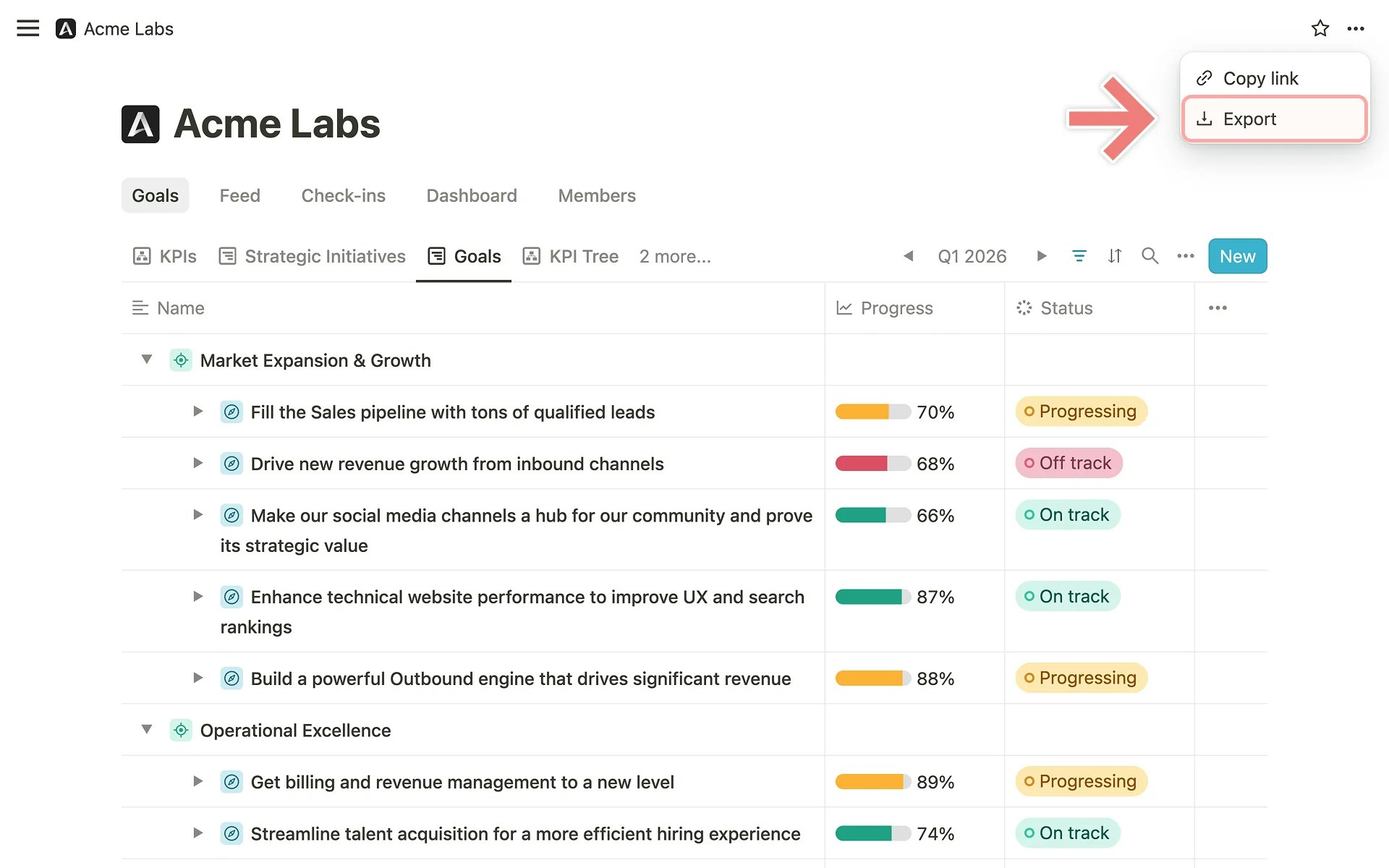
Most exports are triggered from the `...` menu in the top right corner of the page.
Navigate to the page you want to export. Click the `...` button in the top right corner and select `Export`.
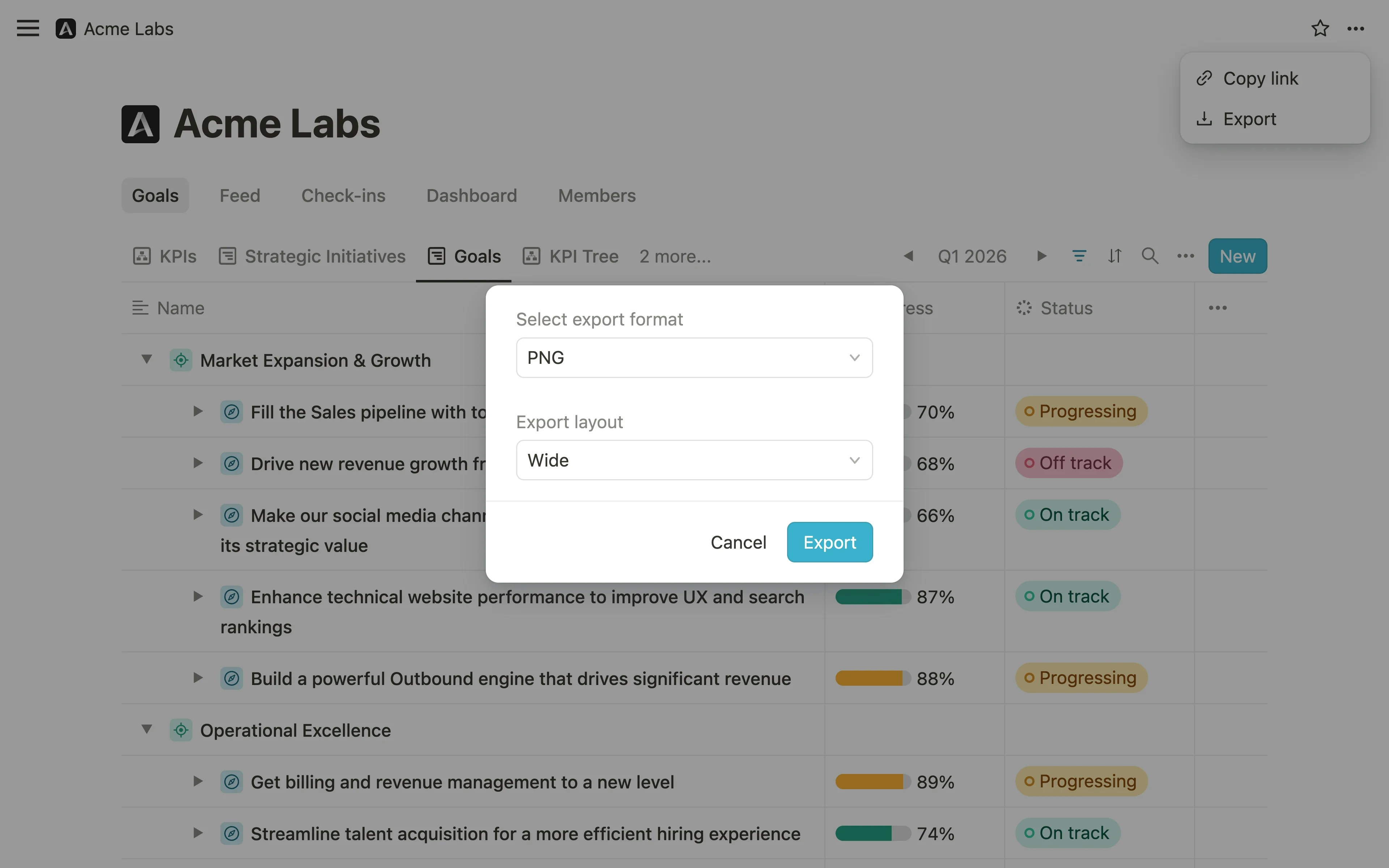
In the dialog that appears, open the **Select export format** dropdown and choose **PNG**, **PDF**, or **CSV**.
When you select PDF or PNG, a second dropdown labeled **Export layout** appears. Choose the width that best fits your needs:
* **Narrow (A4)** — suitable for printing or documents
* **Standard** — a balanced default for most pages
* **Wide** — for pages with more columns or detail
* **Extra wide** — for maximum content width
The default width depends on the page you are exporting from.
Click **Export** to generate and download the file.
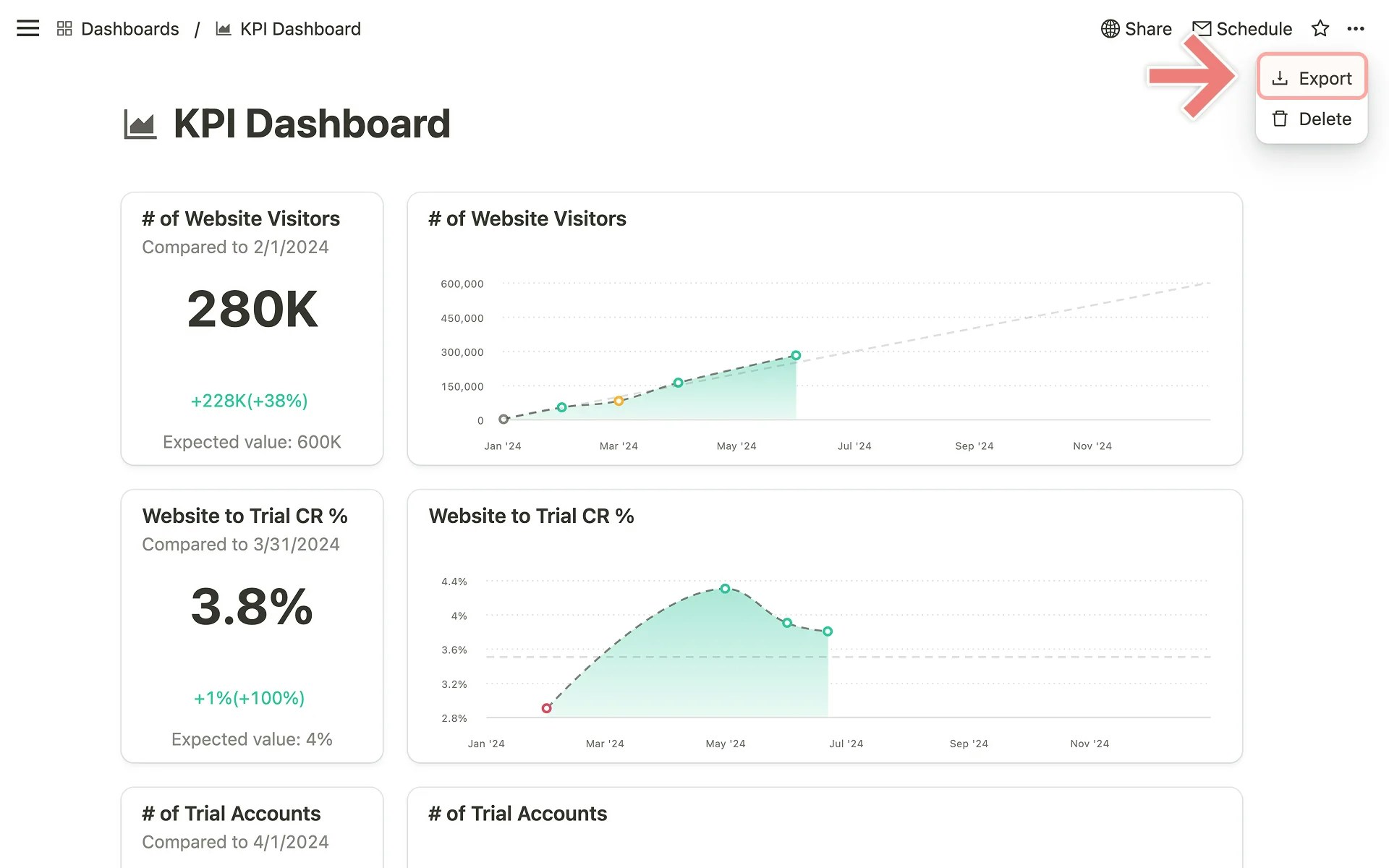
 On dashboards, the same export flow is available via the `...` menu.
 ### Exporting a dashboard goal-list card as CSV
Goal-list cards on [dashboards](/dashboards) can be exported individually as CSV files from within the card itself.
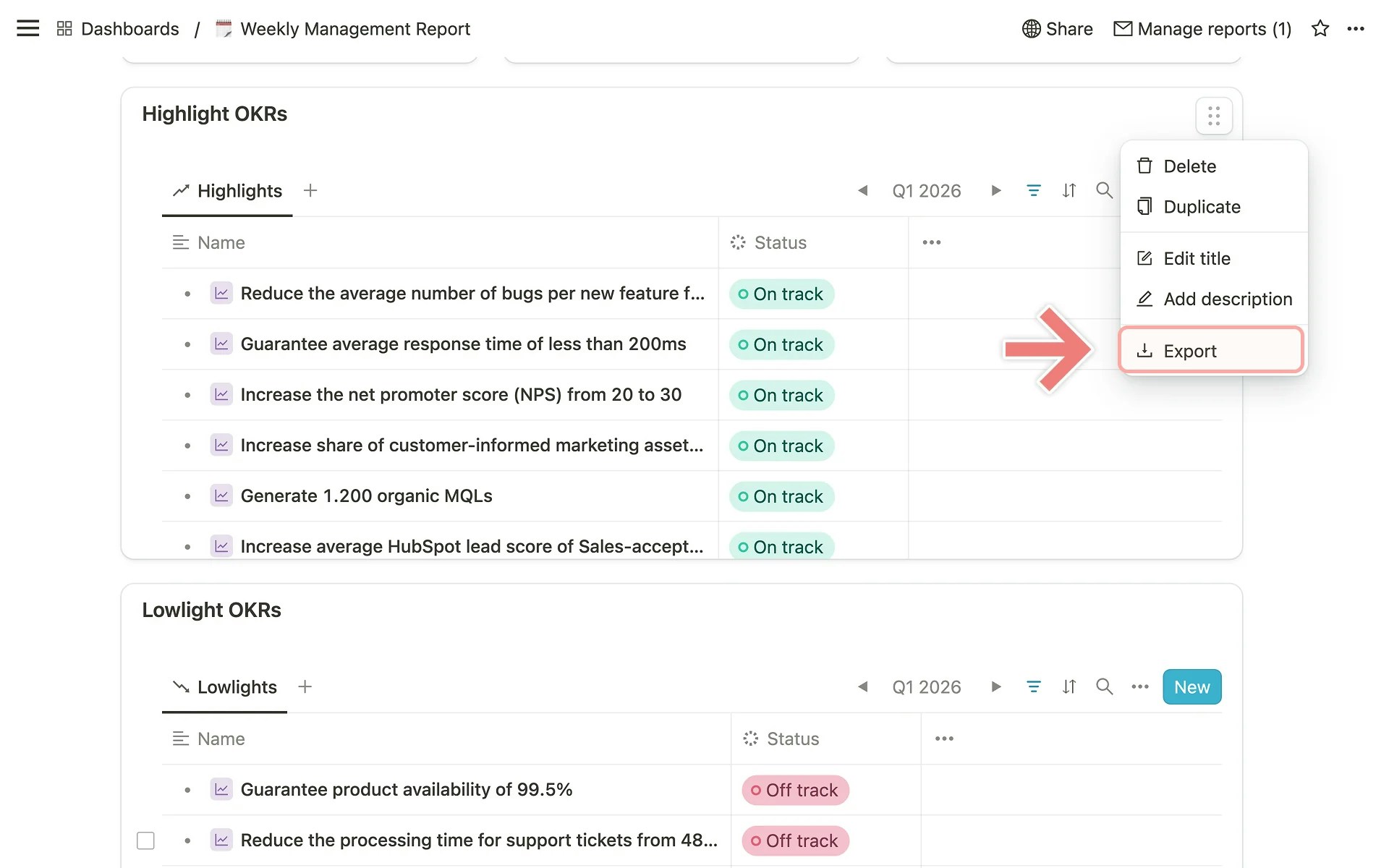
On the dashboard, find the goal-list card you want to export. Click the drag handle icon in the top right corner of the card to open its context menu.
Click `Export` from the context menu. The CSV file will download automatically.
### Exporting a dashboard goal-list card as CSV
Goal-list cards on [dashboards](/dashboards) can be exported individually as CSV files from within the card itself.
On the dashboard, find the goal-list card you want to export. Click the drag handle icon in the top right corner of the card to open its context menu.
Click `Export` from the context menu. The CSV file will download automatically.
 ### Exporting with bulk select
You can also export a selection of goals using bulk select in any cascade or goal-list view.
In a cascade or goal-list view, select up to 10 goals using the checkboxes.
In the bulk actions bar that appears, click **Export** and follow the same format and layout selection as described above.
## Tips
* **Apply filters first.** Before exporting, use [views](/views) and filters to narrow down the data to exactly what you need.
* **Choose the right layout.** For documents intended for printing, **Narrow (A4)** works best. For screen sharing or presentations, consider **Wide** or **Extra wide**.
* **Use CSV for analysis.** If you need to work with goal data in tools like Excel or Google Sheets, CSV is the right format.
### Exporting with bulk select
You can also export a selection of goals using bulk select in any cascade or goal-list view.
In a cascade or goal-list view, select up to 10 goals using the checkboxes.
In the bulk actions bar that appears, click **Export** and follow the same format and layout selection as described above.
## Tips
* **Apply filters first.** Before exporting, use [views](/views) and filters to narrow down the data to exactly what you need.
* **Choose the right layout.** For documents intended for printing, **Narrow (A4)** works best. For screen sharing or presentations, consider **Wide** or **Extra wide**.
* **Use CSV for analysis.** If you need to work with goal data in tools like Excel or Google Sheets, CSV is the right format.