> ## Documentation Index
> Fetch the complete documentation index at: https://mooncamp.com/docs/llms.txt
> Use this file to discover all available pages before exploring further.
# Progress Measurement
> An overview of the different types of goal progress measurement
## Measurement of Goal Progress
How the progress of goals is to be measured can be determined for each goal individually by clicking on `Progress`.
There are five different options for measuring progress of a goal:
* `Start and target value`
* `Aggregation`
* `Threshold`
* `Open/Done`
* `None`
### Start and target value
This option can be used to define the start and target value for a key figure and the associated unit (e.g. start: 0 % => target: 100 %).
Furthermore, the goal can be automatically updated with integrations to other tools such as Asana, Jira or Excel by clicking on `Connect to data source`. This way you can automate the manual updating of goals.
### Aggregation
With the option `Aggregation`, at first you have the option to customize how goal progress appears in the goal table view. You can choose to display progress as a percentage, as absolute values, or both.
Per default, the progress of the goal is expressed as a percentage of the average progress of all goals below it. Thus, the progress is displayed from 0 to 100%. If the subgoals are not measured on a scale from 0 to 100% and have other units (which often happens), they are translated to a percentage scale beforehand.
Example for the calculation:
**Progress (Aggregation)**
| Goal | Progress (Aggregation) |
| ------------- | ---------------------- |
| **Objective** | 33% |
| Key Result 1 | 100% |
| Key Result 2 | 0% |
| Key Result 3 | 0% |
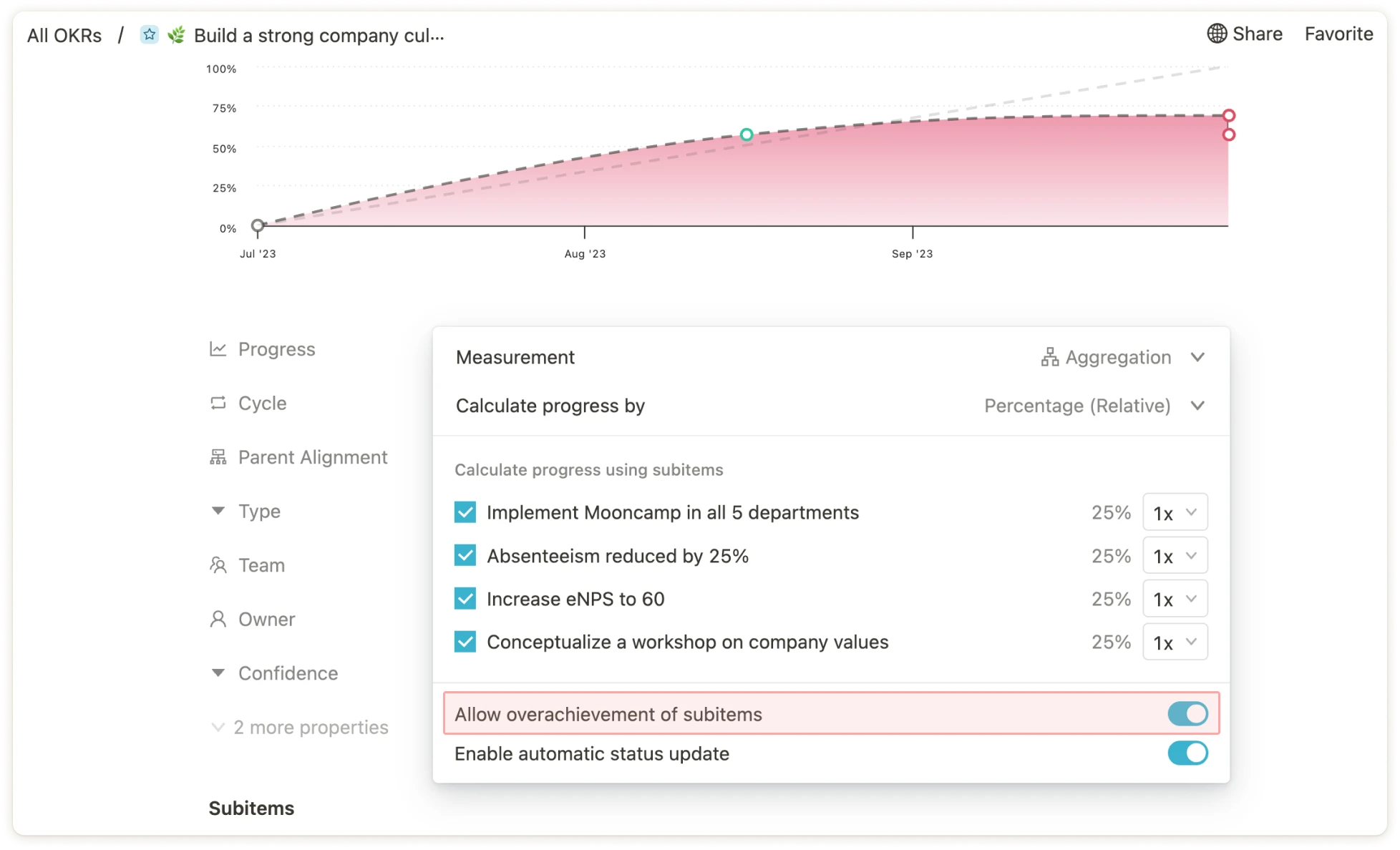
If you want to allow specific goals to exceed the limit of 100% progress, you can enable the button `Allow overachievement of aligned items` on these goals. This has the consequence that reports and dashboards also do not cap goals at 100%.
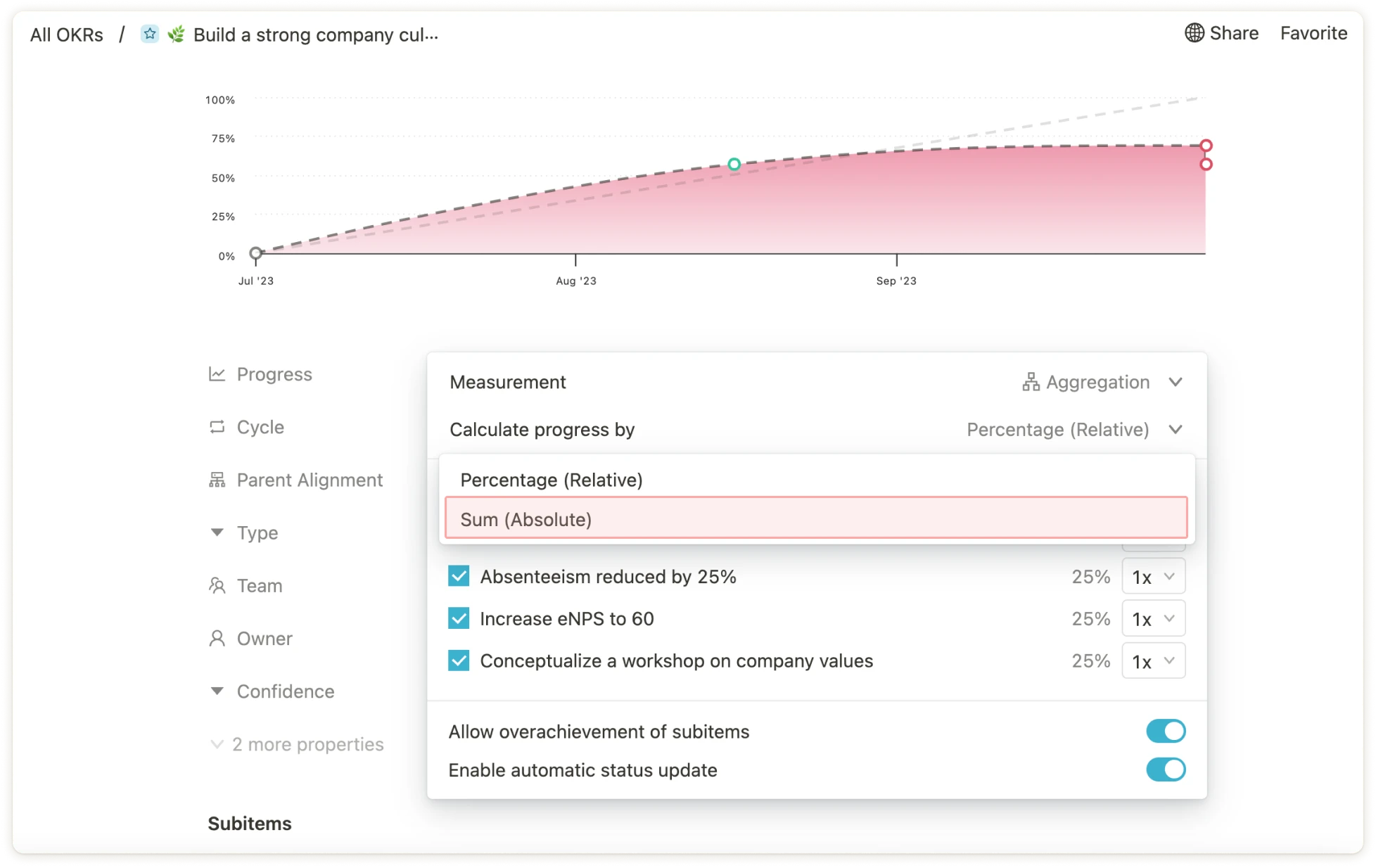
 Further, you have the option to add up the total values of a goal's subitems to calculate its progress. This enables you to, e.d. add up revenue values from different sales areas or create self-updating KPI trees. You can enable this setting by selecting `Calculate progress by Sum (Absolute)`.
 ### Threshold
This option is suitable for goals that should not exceed or fall below a certain limit value. It is possible to specify a numerical limit as well as a self-defined unit (e.g. per cent, euro, customers, etc.). Again, the goal can be automatically updated with integrations to other tools such as Asana, Jira or Excel by clicking on `Connect to data source`.
### Open/Done
With this option, progress is only measured in binary (either `Open` or `Done`). So this option is mainly suitable for goals or initiatives with task or milestone character.
### None
Finally, there is the option of not displaying progress. This can be advantageous, for example, for objectives or other goals that should be of a merely qualitative nature. Subordinate Key Results or other sub-goals can, in turn, again have a progress measurement.
### Threshold
This option is suitable for goals that should not exceed or fall below a certain limit value. It is possible to specify a numerical limit as well as a self-defined unit (e.g. per cent, euro, customers, etc.). Again, the goal can be automatically updated with integrations to other tools such as Asana, Jira or Excel by clicking on `Connect to data source`.
### Open/Done
With this option, progress is only measured in binary (either `Open` or `Done`). So this option is mainly suitable for goals or initiatives with task or milestone character.
### None
Finally, there is the option of not displaying progress. This can be advantageous, for example, for objectives or other goals that should be of a merely qualitative nature. Subordinate Key Results or other sub-goals can, in turn, again have a progress measurement.