> ## Documentation Index
> Fetch the complete documentation index at: https://mooncamp.com/docs/llms.txt
> Use this file to discover all available pages before exploring further.
# Roles / Access Groups
> Managing permissions of user roles
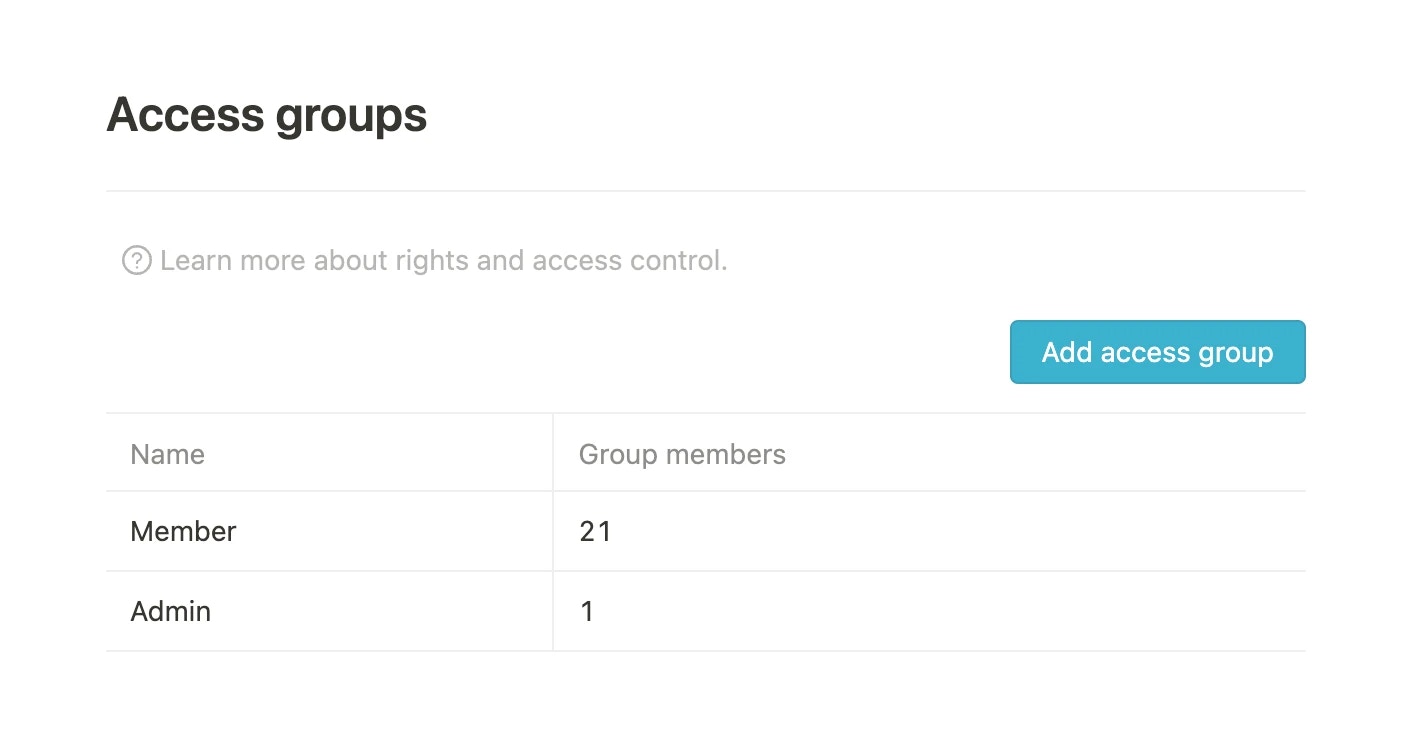
As an admin, you can manage the rights of all employees or specific access groups under `Settings > Access Groups`.
By default, these two access groups are created:
* All Members
* Admin
 ## Edit an access group
The permissions of the access groups can be edited by clicking on the respective group.
## Edit an access group
The permissions of the access groups can be edited by clicking on the respective group.
 ## Creating an access group
### Group members
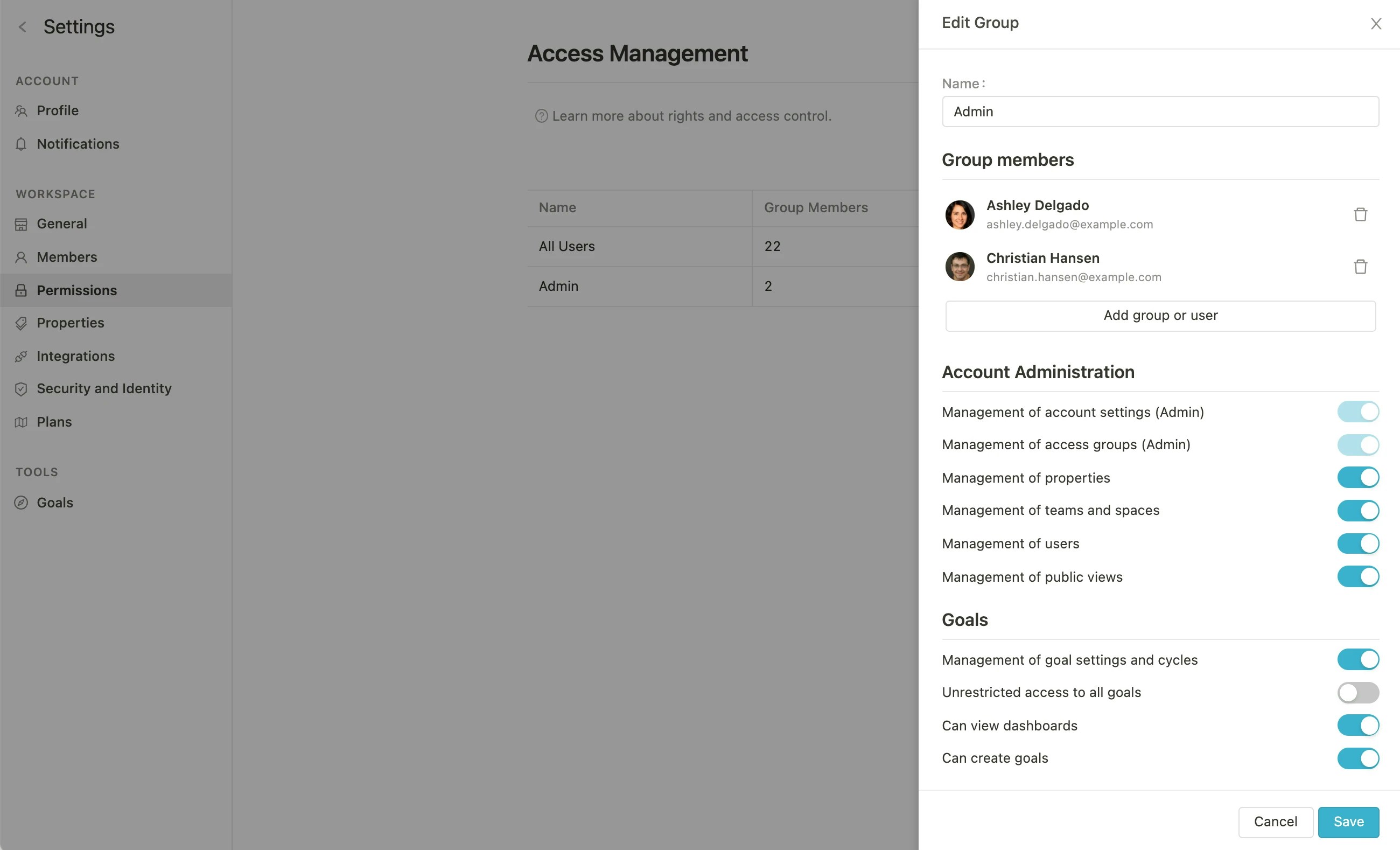
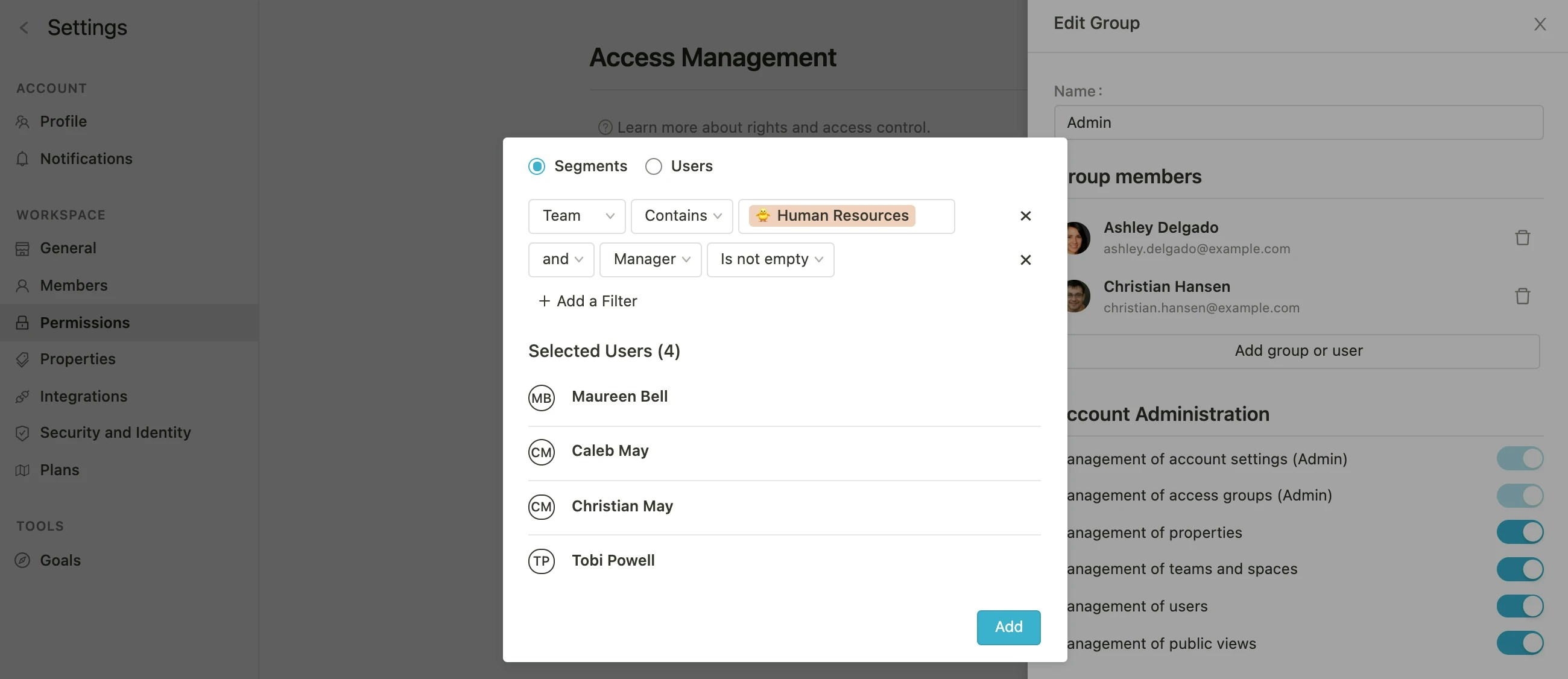
Here all members of the group are defined, who will have the permissions specified below. It is possible to select users manually or by using properties of the users (team, location, manager, etc.).
## Creating an access group
### Group members
Here all members of the group are defined, who will have the permissions specified below. It is possible to select users manually or by using properties of the users (team, location, manager, etc.).
 ## Permissions
When creating a new access group, the following permissions can be set:
### Managing the account
**Management of account settings (Admin)**
Authorized users can administer the account and make changes under `Settings > Workspace > General` and under `Settings > Goals`.
**Management of access groups (Admin)**
Authorized users can access this menu we are currently in and make changes.
**Management of properties**
Authorized users can manage properties.
**Management of teams**
Authorized users can create new teams by clicking on "View All" via the sidebar and then adding new teams via the plus.
**Management of users**
Authorized users can see the members section under *Settings - Workspace* and can manage the members of the account.
**Management of public views**
Authorized users can create public links to individual views under *Tools* - *OKRs* - *Explorer* and via the menu, which they reach via the three dots at the top right of the OKR explorer page.
### Managing goals
**Management of goal settings and cycles**
Authorized users have access to advanced goal settings via *Settings > Goals* (e.g. configuring the traffic light system) and are allowed to create and modify goal cycles.
**Unrestricted access to all goals**
This right gives selected users full access (access rights option “Full access”) to all goals and allows to view, edit, delete and edit access rights to these. This also applies for goals where only viewing rights are set. It does not apply to goals where the creator has set the access rights option "No access", these cannot be viewed.
**Can create goals**
Authorized users can create goals.
**Can choose from all teams and their members**
For team and user properties on goals, users are allowed to choose from all teams and members, not just from their teams and their teams' members.
### Managing check-ins
**Management of check-in templates and settings**
Authorized users can create templates as well as set up and manage schedules.
### Dashboards
**Can view progress and health dashboards**
Authorized users have access to the [Progress](/de/progress-dashboard) and [Health](/de/health-dashboard)-Dashboards.
**Can create dashboards and reports**
Authorized users can create dashboards and reports.
**Unrestricted access to all dashboards**
## Permissions
When creating a new access group, the following permissions can be set:
### Managing the account
**Management of account settings (Admin)**
Authorized users can administer the account and make changes under `Settings > Workspace > General` and under `Settings > Goals`.
**Management of access groups (Admin)**
Authorized users can access this menu we are currently in and make changes.
**Management of properties**
Authorized users can manage properties.
**Management of teams**
Authorized users can create new teams by clicking on "View All" via the sidebar and then adding new teams via the plus.
**Management of users**
Authorized users can see the members section under *Settings - Workspace* and can manage the members of the account.
**Management of public views**
Authorized users can create public links to individual views under *Tools* - *OKRs* - *Explorer* and via the menu, which they reach via the three dots at the top right of the OKR explorer page.
### Managing goals
**Management of goal settings and cycles**
Authorized users have access to advanced goal settings via *Settings > Goals* (e.g. configuring the traffic light system) and are allowed to create and modify goal cycles.
**Unrestricted access to all goals**
This right gives selected users full access (access rights option “Full access”) to all goals and allows to view, edit, delete and edit access rights to these. This also applies for goals where only viewing rights are set. It does not apply to goals where the creator has set the access rights option "No access", these cannot be viewed.
**Can create goals**
Authorized users can create goals.
**Can choose from all teams and their members**
For team and user properties on goals, users are allowed to choose from all teams and members, not just from their teams and their teams' members.
### Managing check-ins
**Management of check-in templates and settings**
Authorized users can create templates as well as set up and manage schedules.
### Dashboards
**Can view progress and health dashboards**
Authorized users have access to the [Progress](/de/progress-dashboard) and [Health](/de/health-dashboard)-Dashboards.
**Can create dashboards and reports**
Authorized users can create dashboards and reports.
**Unrestricted access to all dashboards**