> ## Documentation Index
> Fetch the complete documentation index at: https://mooncamp.com/docs/llms.txt
> Use this file to discover all available pages before exploring further.
# Salesforce Integration
> An overview of the Salesforce data integration.
## Overview
The Salesforce integration updates your goal progress automatically based on task completion in Salesforce.
💡 The Salesforce integration is available for customers on the **Pro** and **Enterprise** plans.
## Enabling the Salesforce integration
Please note: It is recommended to adjust Salesforce's refresh token policy to `Refresh token is valid until revoked` to avoid issues with the integration (see a setup guide below in the [FAQs](#faqs)).
Account admins can enable the Salesforce integration by following these steps:
1. **Access Integrations:** Go to the `Settings` area and open the `Integrations` page.
2. **Enable Salesforce:** Find Salesforce in the integrations list and toggle it on.
## Creating a new Salesforce connection
Any user (not just admins) can now create a new connection to Salesforce. Follow these steps:
1. **Create a new connection:**: Click on `Manage` next to the toggle switch and then click on `Add`.
2. **Grant access to Salesforce:** Click on `Sign in to Salesforce` and click on `Allow access`. Once authorized, users can link their Mooncamp goals with their Salesforce data.
3. **Sharing settings:** Choose whether you want to share the connection with all users or only with yourself.
4. Hit `Save` to finish setting up the connection.
Be aware that sharing the connection with all users allows everyone in this workspace to access the Salesforce data behind that connection.
## Linking a goal's progress to Salesforce data
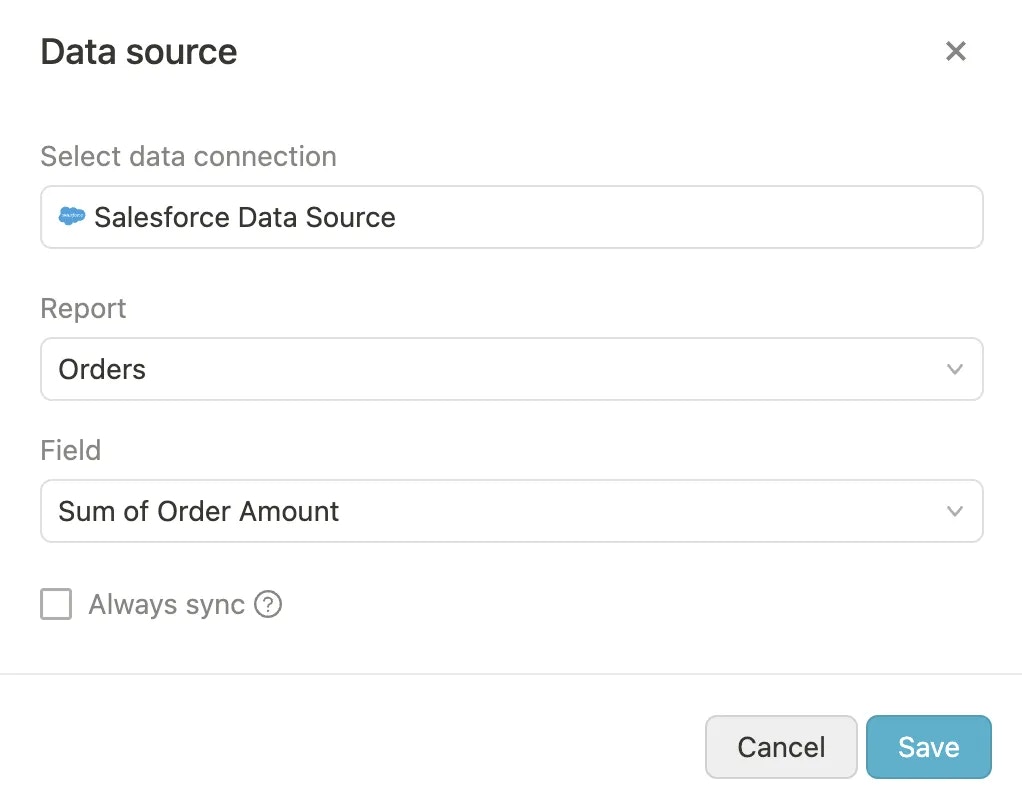 To automatically track progress for a goal using Salesforce, follow these steps:
1. Create or edit a goal, then go to the Progress property and choose a measurement type that allows connecting to a data source (`Start and Target`, `Threshold`).
2. Click *Connect to data source* and select the **Salesforce** connection you want to use from the list of available connections. (You can also create a new connection here.)
3. First choose the Salesforce `Report` you want to access.
4. Then choose the `Field` you want to use to track progress.
5. Lastly, choose whether you want to `Always sync` the data or only when the value changes.
6. **Save your connection:** After configuring what data to track, hit `Save`. The Salesforce icon will appear next to your goal, indicating it's synced with Salesforce.
To automatically track progress for a goal using Salesforce, follow these steps:
1. Create or edit a goal, then go to the Progress property and choose a measurement type that allows connecting to a data source (`Start and Target`, `Threshold`).
2. Click *Connect to data source* and select the **Salesforce** connection you want to use from the list of available connections. (You can also create a new connection here.)
3. First choose the Salesforce `Report` you want to access.
4. Then choose the `Field` you want to use to track progress.
5. Lastly, choose whether you want to `Always sync` the data or only when the value changes.
6. **Save your connection:** After configuring what data to track, hit `Save`. The Salesforce icon will appear next to your goal, indicating it's synced with Salesforce.
 ### Automatic Progress Updates
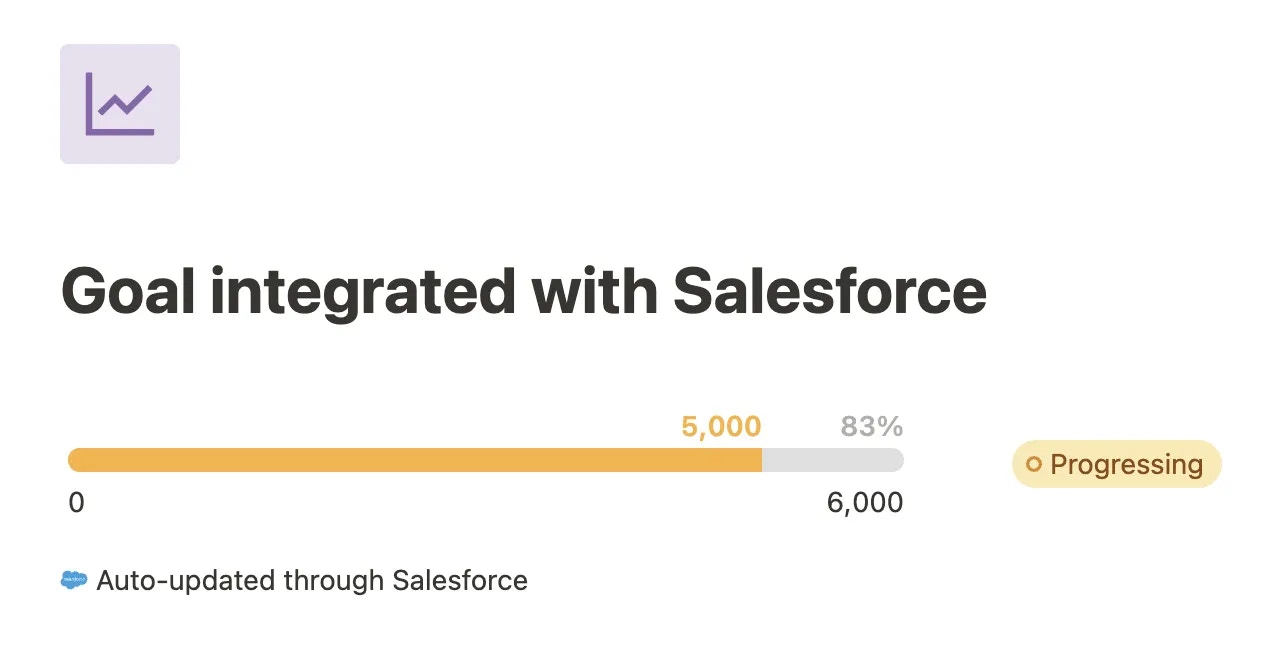
Once the integration is active, Mooncamp automatically updates your goals based on changes in Salesforce.
Tip for admins: Go to `Settings > Integrations`, and make sure every day is selected under “Synchronization”.
## FAQs
In some cases, the Salesforce integration stops working due to Salesforce's refresh token policy. To fix this, please adjust Salesforce's refresh token policy to `Refresh token is valid until revoked`. See the video below:
### Automatic Progress Updates
Once the integration is active, Mooncamp automatically updates your goals based on changes in Salesforce.
Tip for admins: Go to `Settings > Integrations`, and make sure every day is selected under “Synchronization”.
## FAQs
In some cases, the Salesforce integration stops working due to Salesforce's refresh token policy. To fix this, please adjust Salesforce's refresh token policy to `Refresh token is valid until revoked`. See the video below: