> ## Documentation Index
> Fetch the complete documentation index at: https://mooncamp.com/docs/llms.txt
> Use this file to discover all available pages before exploring further.
# Slack Integration
> Learn how to connect and use Mooncamp with your Slack
💡 **Note for admins:** In order for users to be able to use the integration, as a first step it needs to be activated in the admin settings via *Settings > Integrations > Messaging*.
**Please note:** In some cases, your Slack's system administrator must first unlock the app for it to appear in search. You can find the official link to the Mooncamp app in the *Slack app directory* [**here**](https://mooncamphq.slack.com/apps/ASJ1XBZBK-mooncamp).
## Installing the Mooncamp Bot
To install Mooncamp in Slack, in the left sidebar scroll down to *Apps,* click on *+App apps*, search for "Mooncamp" and click on *Add* below the Mooncamp app in the list of search results. You will get directed to Slack’s app directory where you can add the app via the green *Add to Slack* button. You will get directed to the *Mooncamp + Slack* info page, where you can click the *Add to Slack* button to activate the Slack bot in your Mooncamp workspace.
As a next step, go back to Slack and in your sidebar click on *Apps > Manage > Browse Apps > Mooncamp > Configuration* and you will get directed to the Slack app directory again where you can use the green button to *Open in Slack*. Once Mooncamp is added to Slack, the bot will guide you through the next steps.
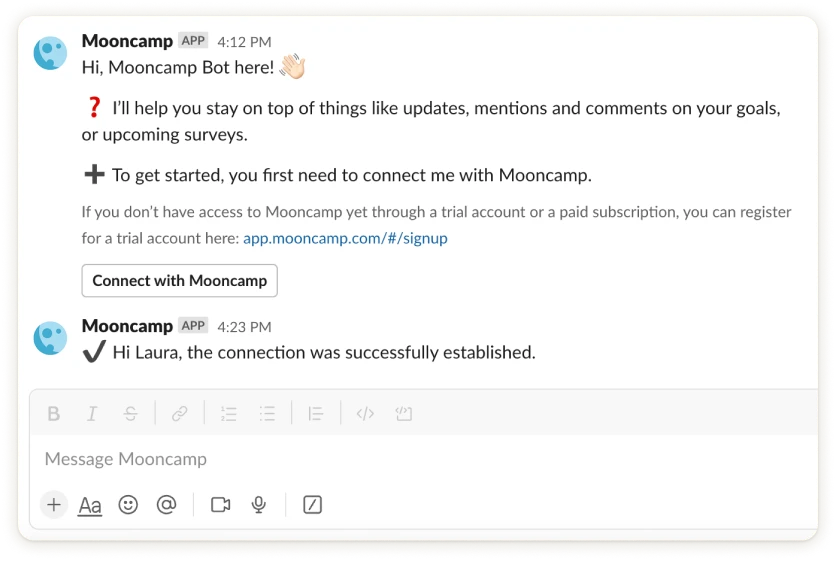
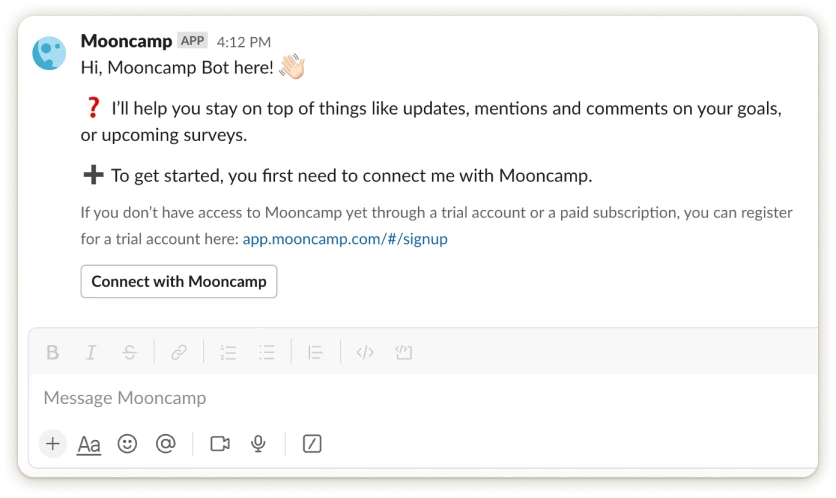 When you click the "Connect with Mooncamp" button, the bot will guide you to your Mooncamp account. The bot will also tell you that the connection has been successfully established.
 **Done! 🎉**
## Using Mooncamp via Slack
Once your Mooncamp Bot is available, you can interact with it via slash commands. These allow you to complete an action with the Mooncamp app simply by sending a message in Slack. To do so, type a forward slash **`/`** in any conversation to view a list of available slash commands.
In order to show your goals in Slack, type */mooncamp goals* into any channel or conversation, press enter and the bot will list your goals. Next to each goal there is an *Update goal* button that you can use to update your goals’ progress directly via Slack. When you click on the button, a modal opens in which you can edit the *status* and the *value* of your goal and if needed, add a comment to the update. Check out this procedure in the video FAQs below.👇
**Done! 🎉**
## Using Mooncamp via Slack
Once your Mooncamp Bot is available, you can interact with it via slash commands. These allow you to complete an action with the Mooncamp app simply by sending a message in Slack. To do so, type a forward slash **`/`** in any conversation to view a list of available slash commands.
In order to show your goals in Slack, type */mooncamp goals* into any channel or conversation, press enter and the bot will list your goals. Next to each goal there is an *Update goal* button that you can use to update your goals’ progress directly via Slack. When you click on the button, a modal opens in which you can edit the *status* and the *value* of your goal and if needed, add a comment to the update. Check out this procedure in the video FAQs below.👇