

Before you start
- You need write access to the workspace settings in Mooncamp.
- Every user who should log in must exist in your Mooncamp workspace with exactly the same email address as their Google account.
Setup
1
Allow login via Google in Mooncamp
Go to Settings > Identity and provisioning and switch on Allow login via Google under Access.
2
Add your users to Mooncamp
Add everyone who should log in under Settings > Members, using their Google email address (see Managing members).
3
Log in with Google
Open the Mooncamp login page, click Log in via Google and choose your Google account. You are logged in to Mooncamp.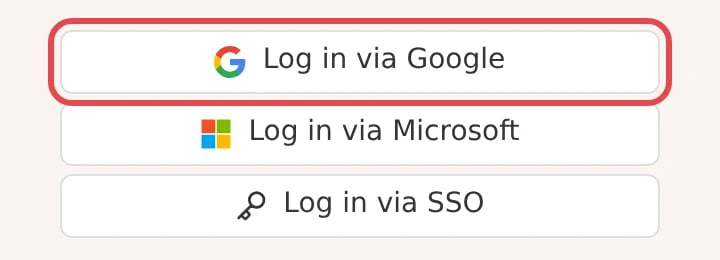
If Google blocks the login
Some Google Workspace organizations only allow third-party apps that an admin has marked as trusted. In that case Google shows a message that the app is blocked by your admin. A Google Workspace admin can allow Mooncamp in the Google Admin console under Security > Access and data control > API controls > Manage App Access: find Mooncamp, select Change access and choose Trusted. See Google’s guide Control which apps access Google Workspace data for details.Good to know
- SSO doesn’t add users. Logging in with Google doesn’t create users in Mooncamp. Only people added to your Mooncamp workspace can log in.
- Only allow Google. If everyone logs in with Google, switch off Allow login via password and Allow login via Microsoft under Settings > Identity and provisioning.
Troubleshooting
The user is logged in to Google but can't get into Mooncamp
The user is logged in to Google but can't get into Mooncamp
Check that the user exists under Settings > Members and that the email address there is exactly the same as their Google account address.
I can't switch off login via password
I can't switch off login via password
At least one login method must stay switched on, and you can’t switch off the method you used for your current session. Log in with Google first, then switch off login via password.