

Before you start
- You need write access to the workspace settings in Mooncamp.
- Every user who should log in must exist in your Mooncamp workspace with exactly the same email address they use to sign in to Microsoft, their user principal name (UPN), for example
jane.doe@company.com. If the addresses differ, the login fails. - Many organizations only allow apps that an admin has approved. In that case you also need someone with an admin role in Microsoft Entra ID (for example Cloud Application Administrator, Application Administrator or Global Administrator). You find out in step 3 whether this applies to you.
Setup
1
Allow login via Microsoft in Mooncamp
Go to Settings > Identity and provisioning and switch on Allow login via Microsoft under Access.
2
Add your users to Mooncamp
Add everyone who should log in under Settings > Members (see Managing members).
3
Log in once with Microsoft
Open the Mooncamp login page, click Log in via Microsoft and sign in with your Microsoft account.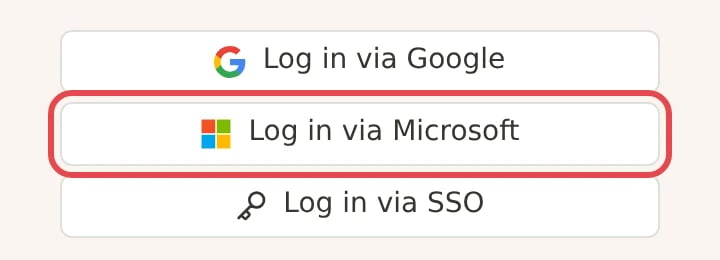
- You are logged in to Mooncamp: your organization allows users to approve apps themselves. You are done, and all other users can log in the same way.
- Microsoft shows “Need admin approval” or “Approval required”: your organization requires an admin to approve Mooncamp first. Continue with the next step.
4
Get admin approval in Microsoft Entra ID
An Entra ID admin approves Mooncamp once for the whole organization. There are two ways to do this, described in the next section.
5
Log in
Right after the approval, users can log in with Log in via Microsoft. Nobody needs to approve anything again.
Getting admin approval
Option A: the admin logs in to Mooncamp
This is the quickest way if your Entra ID admin also has a Mooncamp account.- The admin opens the Mooncamp login page and clicks Log in via Microsoft.
- Microsoft shows the permissions Mooncamp requests. The admin selects Consent on behalf of your organization and then Accept.
Option B: the user sends a request, the admin approves it
If your organization has turned on the admin consent workflow, the “Approval required” screen lets users send a request:- The user enters a short reason (for example “Login to Mooncamp, our goal management tool”) and selects Request approval.
- The admin gets an email, signs in to the Microsoft Entra admin center and goes to Entra ID > Enterprise apps > Admin consent requests (under Activity), tab My Pending.
- The admin selects the request for the app Mooncamp Login, checks the permissions with Review permissions and consent and grants consent.
Once Mooncamp has been approved, the admin can find it in the Entra admin center under Entra ID > Enterprise apps > All applications (search for “Mooncamp Login”). Under Security > Permissions, Grant admin consent approves it again for the whole organization, for example if permissions were removed.
What Mooncamp asks for
Mooncamp only requests the Microsoft Graph permission User.Read (“Sign in and read user profile”). Mooncamp uses it to read the name and email address of the person logging in. Mooncamp can’t access emails, files or other users through this login.Good to know
- SSO doesn’t add users. Approving Mooncamp in Entra ID doesn’t create any users in Mooncamp. Only people added to your Mooncamp workspace can log in. To create, update and remove users automatically from Entra ID, use user provisioning via SCIM (Enterprise).
- Restrict who can use the app (optional). By default, after approval every user in your Microsoft organization may sign in to the app; Mooncamp still only lets in people who are members of your workspace. If you want to limit this in Entra ID as well, set Assignment required on the app Mooncamp Login and assign users or groups.
- Only allow Microsoft. If everyone logs in with Microsoft, switch off Allow login via password and Allow login via Google under Settings > Identity and provisioning.
Troubleshooting
The user is logged in to Microsoft but can't get into Mooncamp
The user is logged in to Microsoft but can't get into Mooncamp
Check that the user exists under Settings > Members and that the email address there is exactly the same as their Microsoft sign-in address (user principal name). Aliases don’t count.
Our Microsoft sign-in address differs from our email address
Our Microsoft sign-in address differs from our email address
This can happen after a rename or a tenant migration (for example sign-in
j.doe@company.com, email jane.doe@company.com). Add the user in Mooncamp with their sign-in address. If that isn’t possible, contact our support: if both addresses use the same domain, we can turn on matching by the email address for your workspace.Microsoft still asks for approval after the admin approved Mooncamp
Microsoft still asks for approval after the admin approved Mooncamp
Check that consent was granted for the whole organization (option A with Consent on behalf of your organization, or option B). An approval for a single user doesn’t apply to the others.
I can't switch off login via password
I can't switch off login via password
At least one login method must stay switched on, and you can’t switch off the method you used for your current session. Log in with Microsoft first, then switch off login via password.