

Multiple workspaces explained
A workspace is a self-contained Mooncamp environment with its own goals, teamspaces, members, settings and plan. With a single email address you can be part of several workspaces at the same time, for example one for your own organization and one for a subsidiary, a client or a separate business unit. You don’t need a second login for this. All of your workspaces are connected to the same email address, and you switch between them from the workspace menu without signing in again.Workspaces are strictly separated from each other. Goals, check-ins, dashboards, members and files from one workspace are never visible in another one. Your role can also differ per workspace, so you can be an admin in one workspace and a member in another.
When to use multiple workspaces
Separate workspaces are especially useful in larger organizations that want to run their goal process independently per organization, business unit, region or subsidiary. Cycles, properties, check-in rhythms and settings are configured per workspace, so each part of the group can work the way it needs to instead of being tied to one shared setup. Members who belong to several of these organizations reach all of them from the same menu, with a role that can differ in each.The workspace menu
Click the name of your workspace in the top left of the sidebar to open the workspace menu.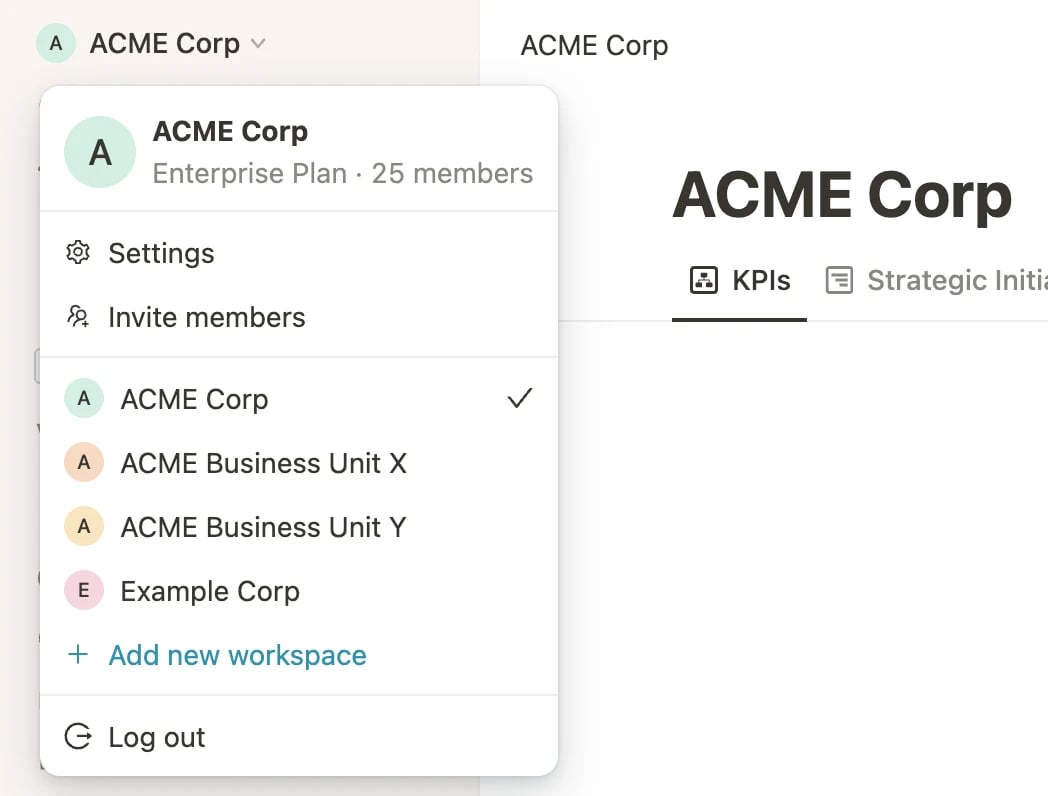
Switching between workspaces
1
Open the workspace menu
Click your workspace name in the top left of the sidebar.
2
Select a workspace
Click the workspace you want to switch to.
When you sign in to Mooncamp, you always land in the workspace you used last.
Joining a workspace you have been invited to
An admin can invite you to their workspace with the email address you already use for Mooncamp. You don’t need to create a second account or a new password for this. As soon as the invitation exists, the workspace appears in your workspace menu and is marked as a pending invitation. Click it to join the workspace. After that it behaves like any other workspace in your list. If you were invited by email, you can also simply follow the link in the invitation email.Creating a new workspace
1
Open the workspace menu
Click your workspace name in the top left of the sidebar.
2
Click Add new workspace
Mooncamp creates a new, empty workspace and takes you to its onboarding.
3
Set up the new workspace
Enter a name for the organization and go through the onboarding. Afterwards you can invite members and start creating goals.
What is shared and what is separate
Some information belongs to you as a person and is therefore identical in all of your workspaces. Everything that can differ per organization is stored separately for each workspace.SAML SSO is configured per workspace. If a workspace uses SSO, you sign in to that workspace through its identity provider.
Links and notifications
Every link in Mooncamp points to a specific workspace. If you open a link to a goal, dashboard or check-in that lives in another one of your workspaces, Mooncamp automatically switches to that workspace and opens the content there. The same applies to email notifications and reminders. You receive them per workspace, and each link takes you to the right one.Slack and Microsoft Teams
If you have connected Slack or Microsoft Teams in more than one workspace, you can define which workspace the bot acts in. Use the switch account option of the Mooncamp bot to select a workspace. All following actions, such as check-ins or goal updates, are then made in that workspace. The connection is set up per workspace, so you can connect Slack or Microsoft Teams in one workspace and not in another.Leaving a workspace
At the moment you cannot leave or delete a workspace yourself. If you no longer need access to a workspace, ask an admin of that workspace to remove you underSettings > Members. The workspace then disappears from your workspace menu.
If you are the only admin of that workspace, there is nobody who can remove you, and you cannot remove yourself. In that case, please reach out to our support team at support@mooncamp.com.
Frequently asked questions
Do I need a separate password for every workspace?
Do I need a separate password for every workspace?
No. Your email address and your password belong to you as a person and are the same for all of your workspaces. An exception is workspaces with SAML SSO, where you sign in through the identity provider of that workspace.
Does my plan cover all of my workspaces?
Does my plan cover all of my workspaces?
No. Plan and billing are handled per workspace. A workspace on the Enterprise plan does not unlock Enterprise features in your other workspaces.
Can members of one workspace see my other workspaces?
Can members of one workspace see my other workspaces?
No. Members only see you within the workspace you share with them. Your other workspaces and their content are not visible to them.
Why do I have different rights in different workspaces?
Why do I have different rights in different workspaces?
Roles and access rights are assigned per workspace by the admins of that workspace. You can be an admin in one workspace and a member in another. You can find more about this under Roles and Access rights.
Do I get notifications from all of my workspaces?
Do I get notifications from all of my workspaces?
Yes. You receive notifications from every workspace you are a member of, and each link takes you to the corresponding workspace. Which notifications you receive can be set separately per workspace under
Settings > Notifications.